


 Prospect lists
Review Your Lead List. Campaign Ready from the Start.
Build the list. Create the campaign. Send across channels. Work every reply. See exactly what happened, down to the message and through to revenue.
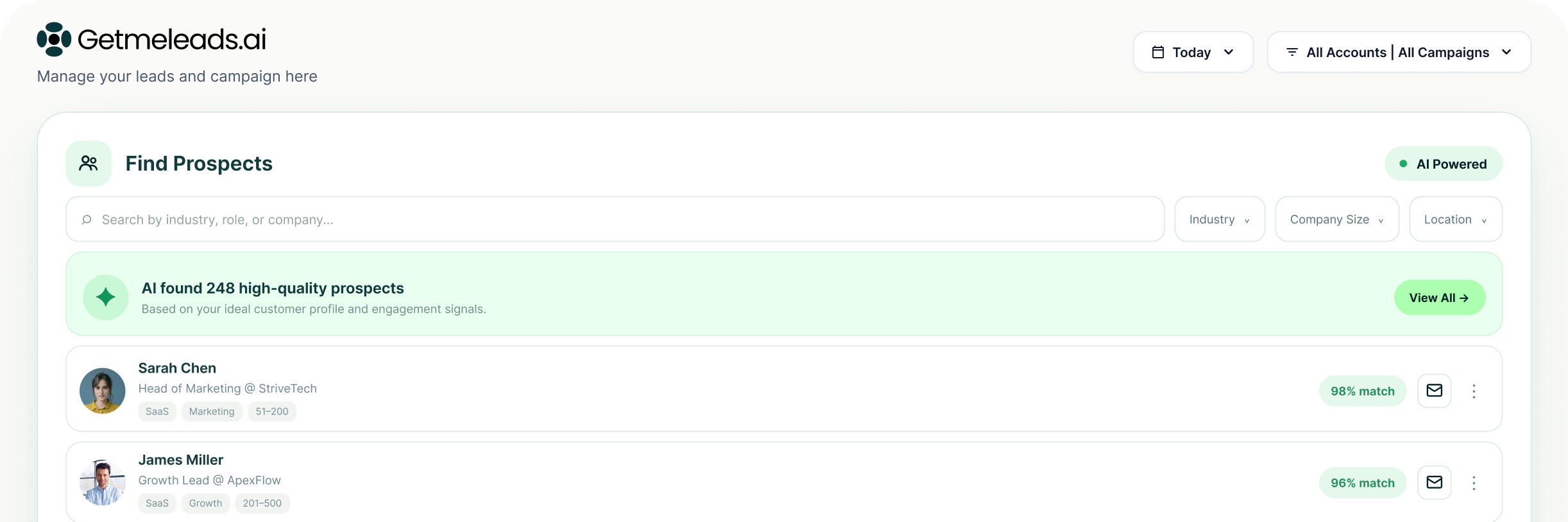
The LinkedIn outreach platform trusted by 300+ Companies and across 60+ Industries








Sources
Three ways to start a list, and preview each one before publishing
LinkedIn search, Sales Navigator, files, groups, events, visitors and connected systems can all become lists inside the same workspace.
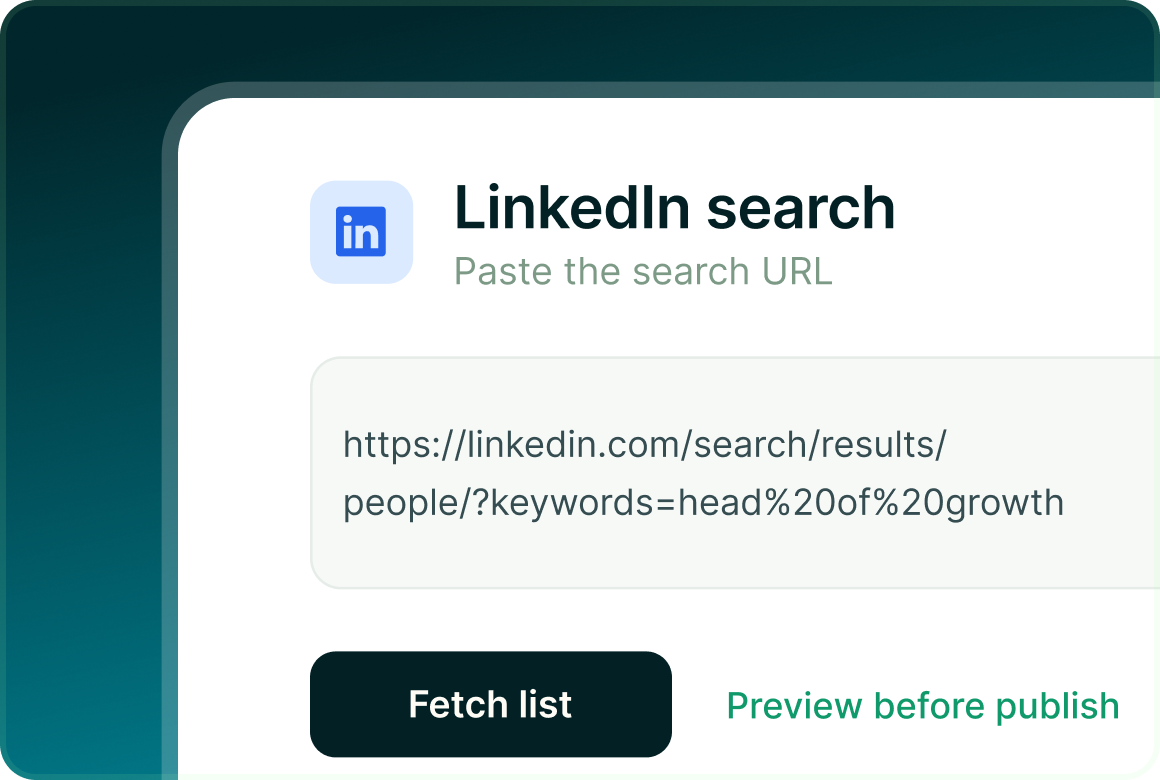
LinkedIn and Sales Navigator
Bring in a LinkedIn people search or a Sales Navigator result. GML turns the result into a list you can check before publishing.
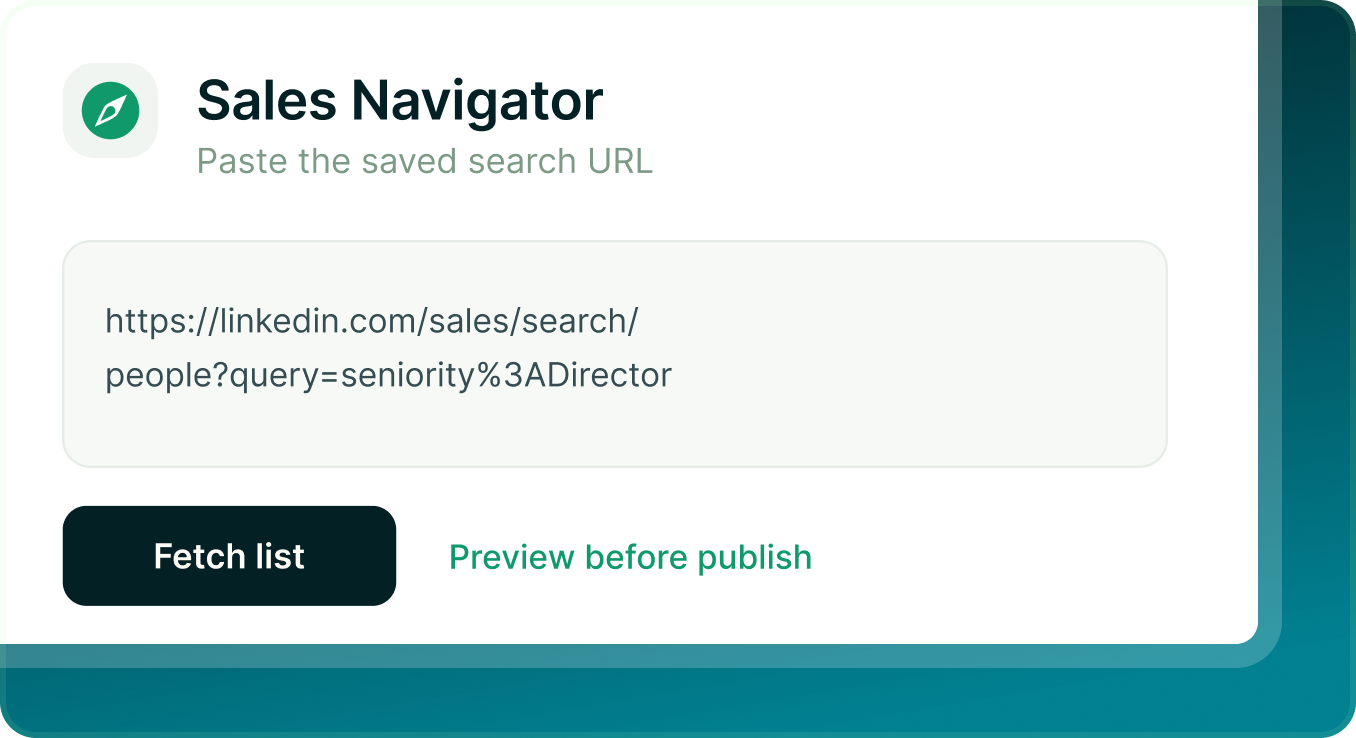
Sales Navigator URL
Bring in a Sales Navigator result and preview the people before publishing. You can also apply GML's advanced filters before the list goes live. 3-marketing-and-sales (2)
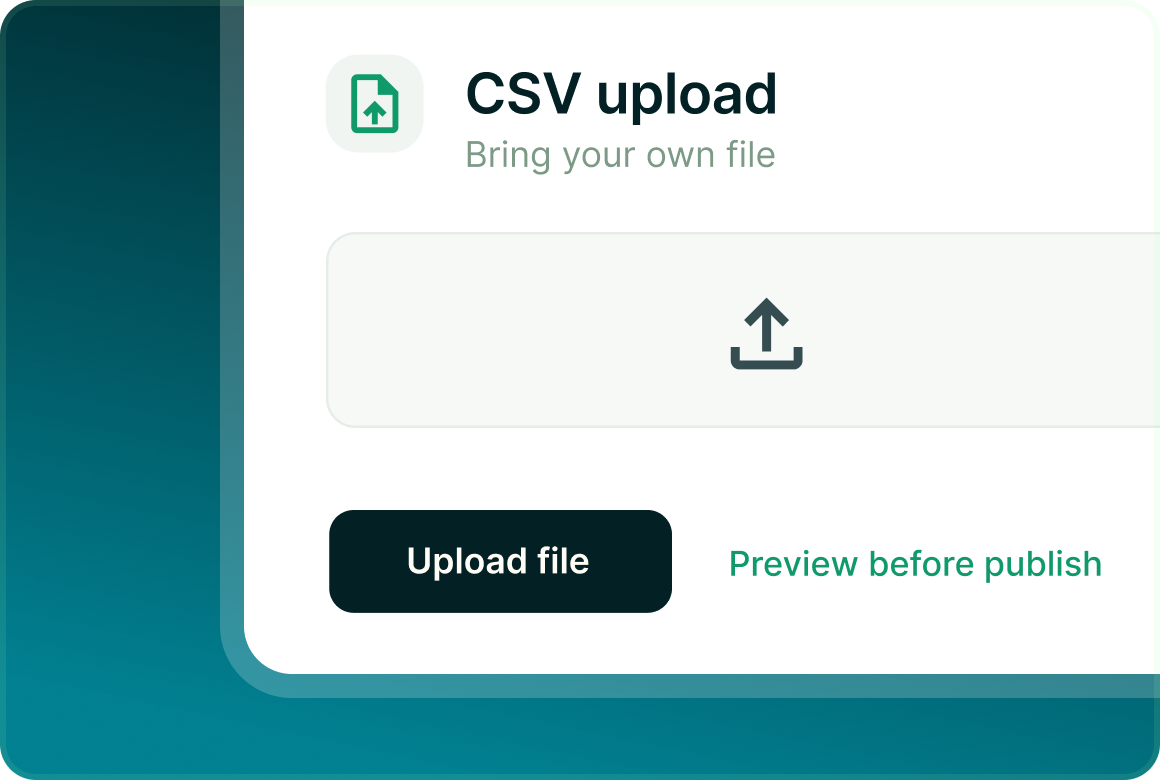
CSV upload
Bring in a list from your CRM, an event export or your own spreadsheet. GML maps recognised columns automatically, lets you map the rest, and shows you the first rows before import.
Every lead, every stage
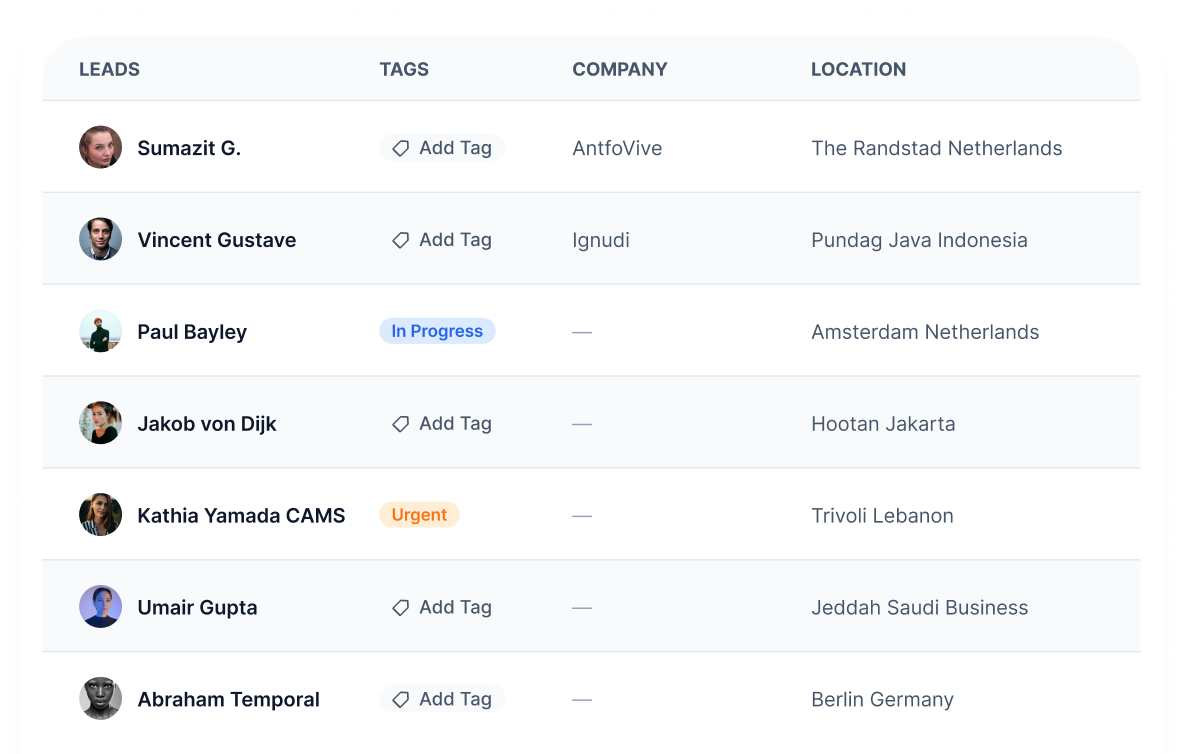
One table shows where every prospect stands
See the company, location, tags, current state, status and next scheduled action without going back to the source that created the list.
The lead drawer
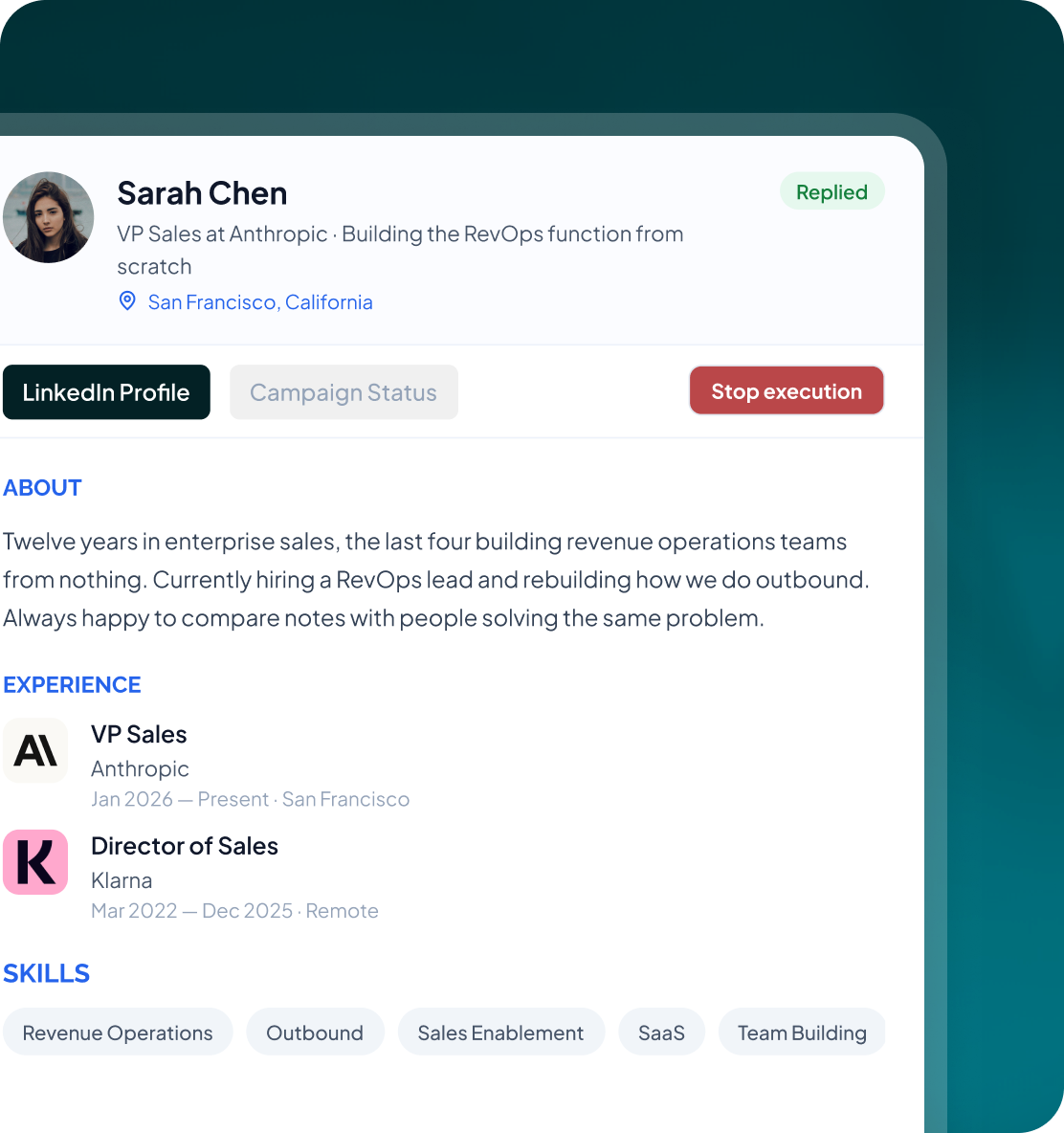
Open the person behind the row
Check the LinkedIn profile data attached to the lead before outreach starts. Once they enter a campaign, the same record keeps the activity that follows.
- See the profile information you need to check whether the person belongs on the list.
- Review their roles, companies, dates and skills from the lead record.
- Once outreach starts, Campaign Status records each step, its time, its outcome and the exact message that was sent.
Blacklist and duplicates
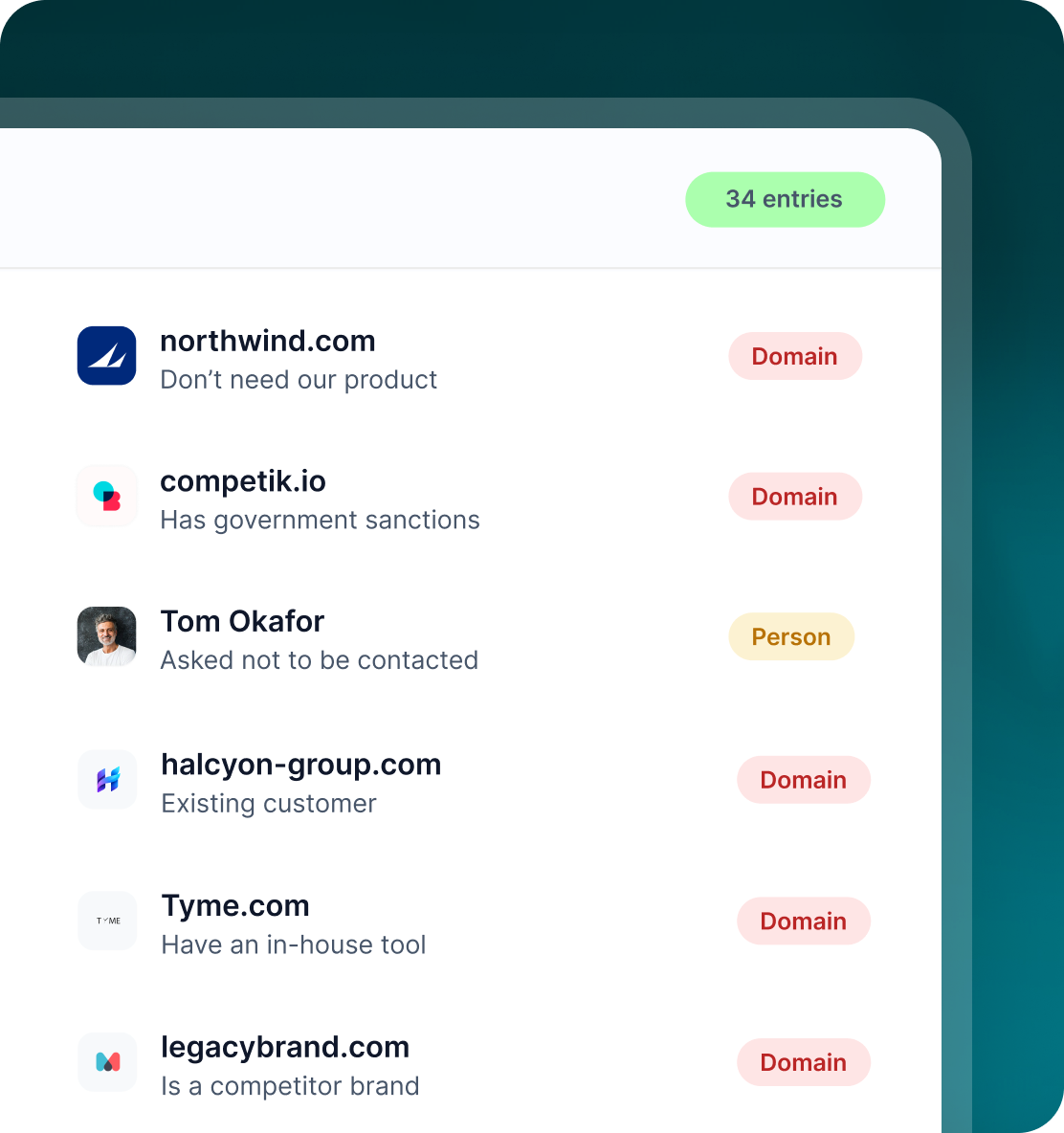
Stop duplicate outreach before it starts
The workspace block list and duplicate checks protect every campaign from contacting someone who should not be contacted again.
- Add a prospect, email, LinkedIn URL, company, domain or CRM record to the workspace-wide block list.
- GML checks LinkedIn URL, email and CRM ID so the same lead is not contacted by two campaigns or two seats.
- The do-not-contact list is checked before enrolment and again before each outreach step.
Case studies
Teams who can show their work
“Using Get Me Leads has been one of our smartest investments. Our team actively engages with the platform, and we’ve seen a notable boost in our sales.”




“We’ve fully transitioned our operations to Get Me Leads. The product is user-friendly and adaptable, greatly helping us increase our lead generation.”


Build the list. Check who is in it. Then launch.
Questions
Before you build your first list
No. You can build lists from a LinkedIn search, files, groups, events, visitors and other supported sources. Sales Navigator is required specifically for Create with AI, where AI builds the targeting and list from your request.
Preview is a step in the wizard, not an afterthought. You see the actual people the search returned, with name, title and company, and you can drop anyone you do not want before the list is published to a seat.
GML automatically maps recognised column names and lets you map the rest manually. You can create custom fields during import and preview the first rows before publishing.
Remove individual prospects or select them in bulk before launch. You can also control how many new leads enter a campaign each day in the launch settings.
Yes. It is workspace-wide and can block a prospect, email address, LinkedIn URL, company, domain or CRM record. It is checked before enrolment and before every outreach step.
You can rename a list or move it to another seat. Its original search settings remain read-only, and changing the name or account does not rerun the search.