


 Analytics & activity
Go Beyond the Numbers. See the Message Behind Them.
See what happened across the workspace, inspect campaign results in detail, then open the lead record to see each step, its outcome and the exact message that was sent.
The LinkedIn outreach platform trusted by 300+ Companies and across 60+ Industries








Three levels
Start with the result. Then get underneath it.
Use the workspace view for the headline, campaign reporting for the detail, and the lead record when you need to see exactly what happened to one person.
The workspace
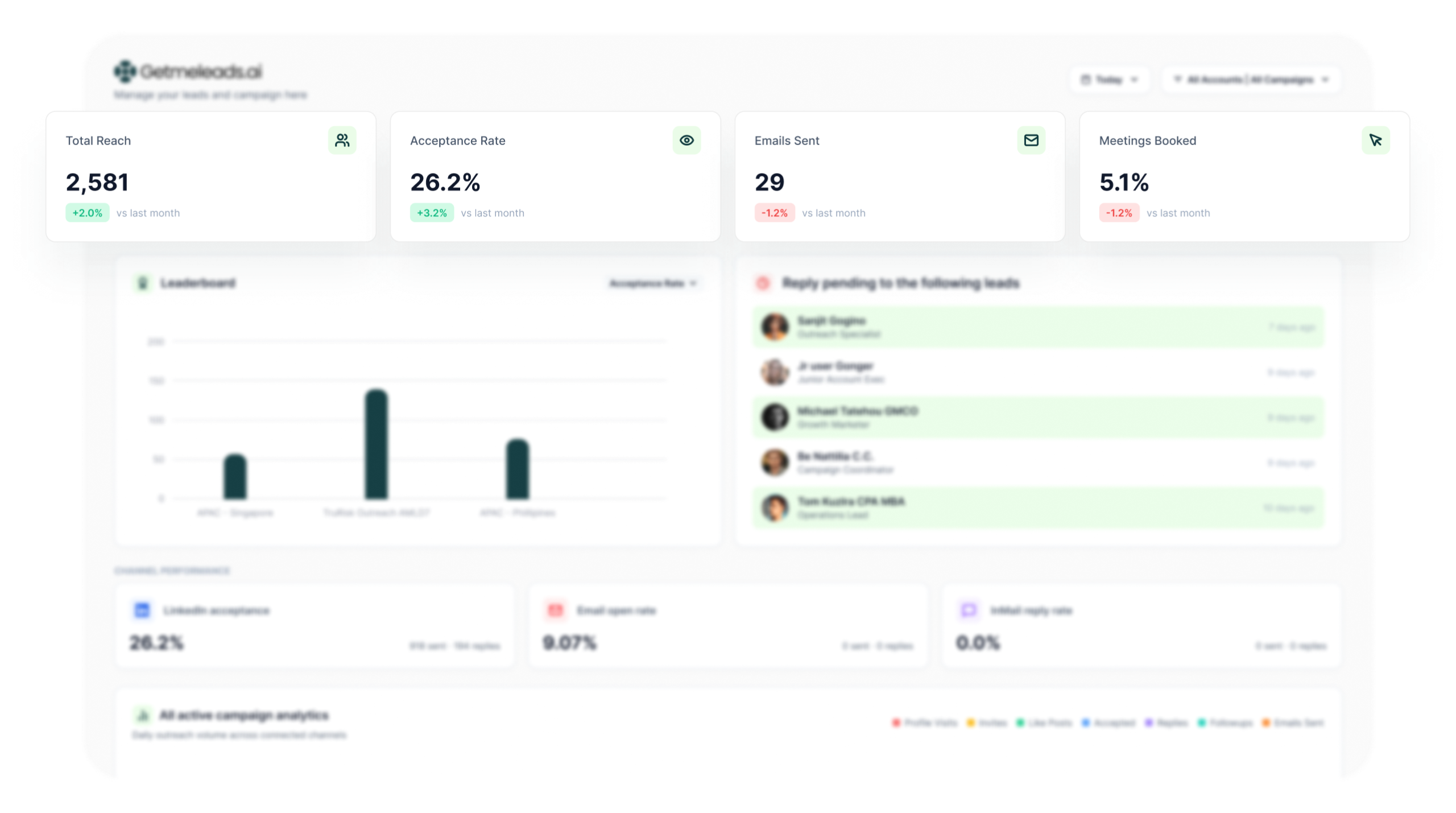
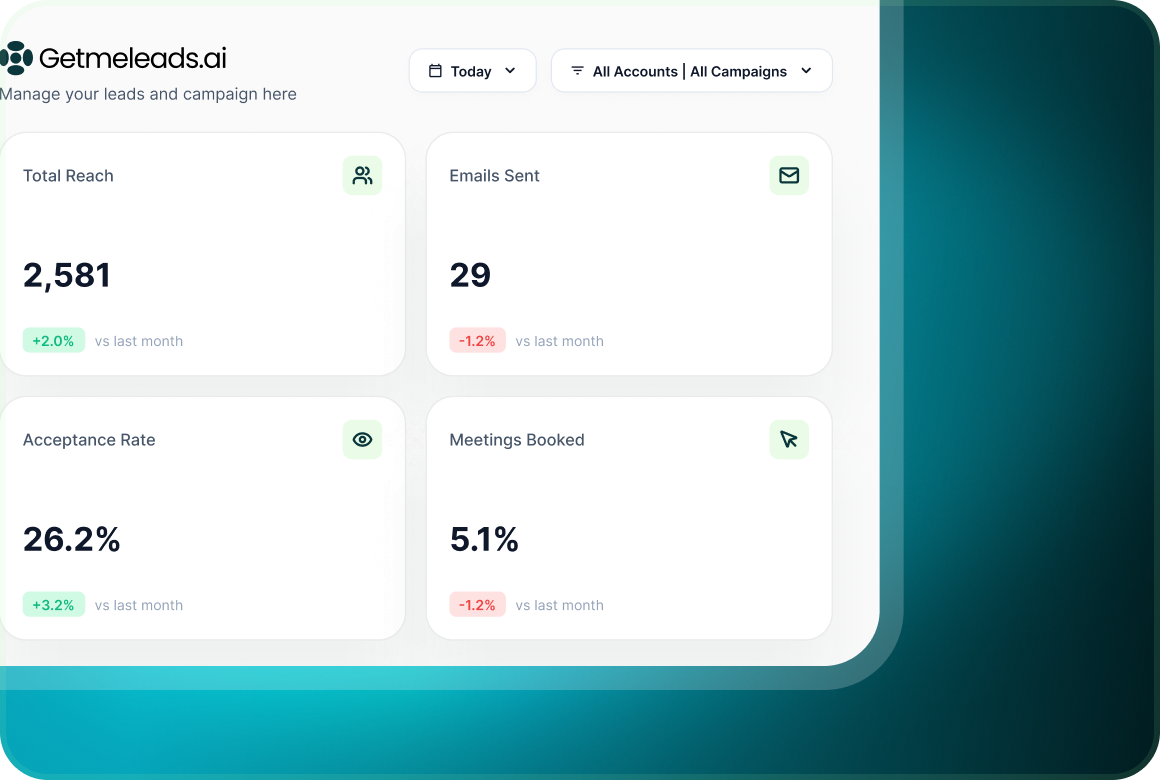
See Total reach, Acceptance rate, Positive reply rate and Meetings booked across the workspace, with change against the previous period.
The campaign
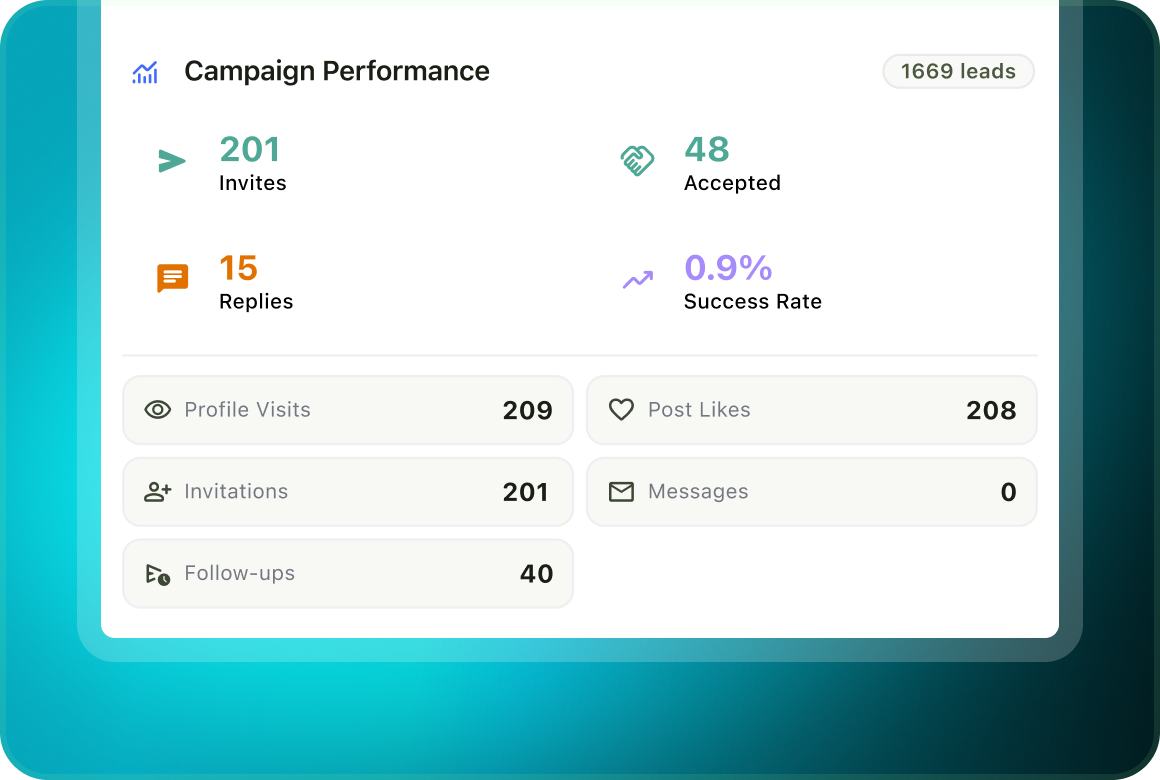
Move from the workspace view into campaign reporting to see results by campaign, step, version, mailbox and lead.
The lead
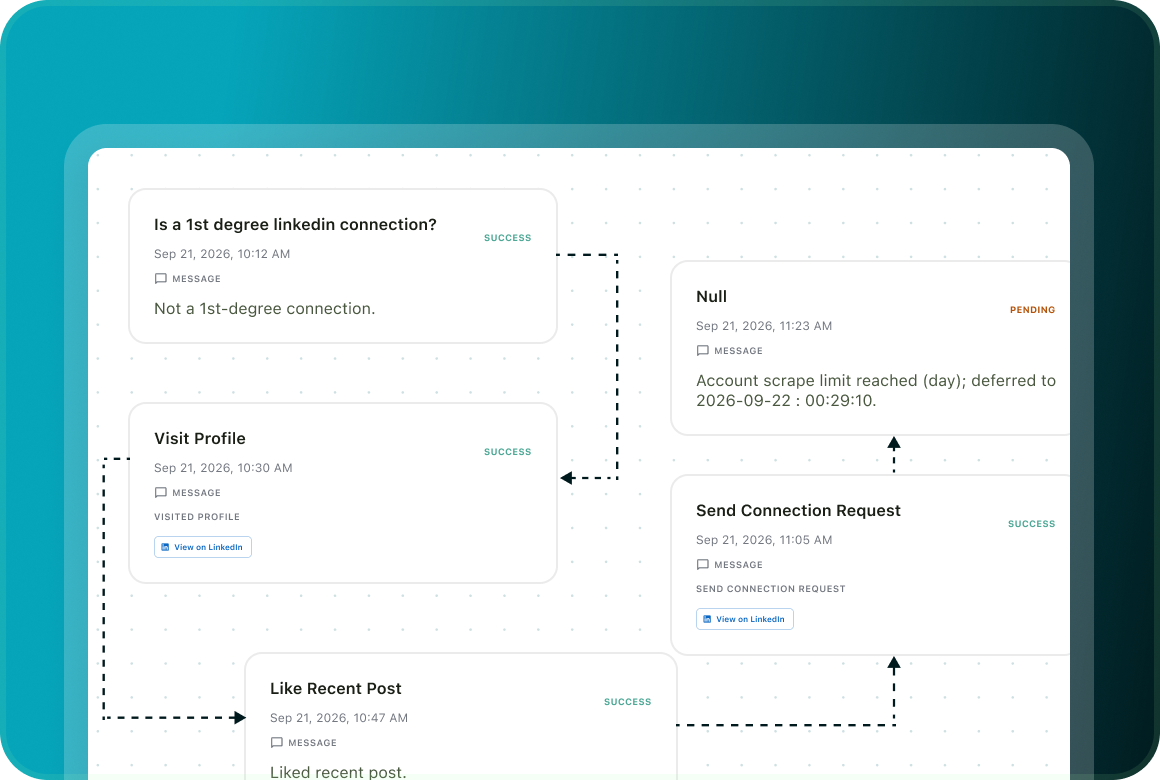
Open the lead record to see every campaign step, when it happened, the outcome and the exact message that was sent.
Activity
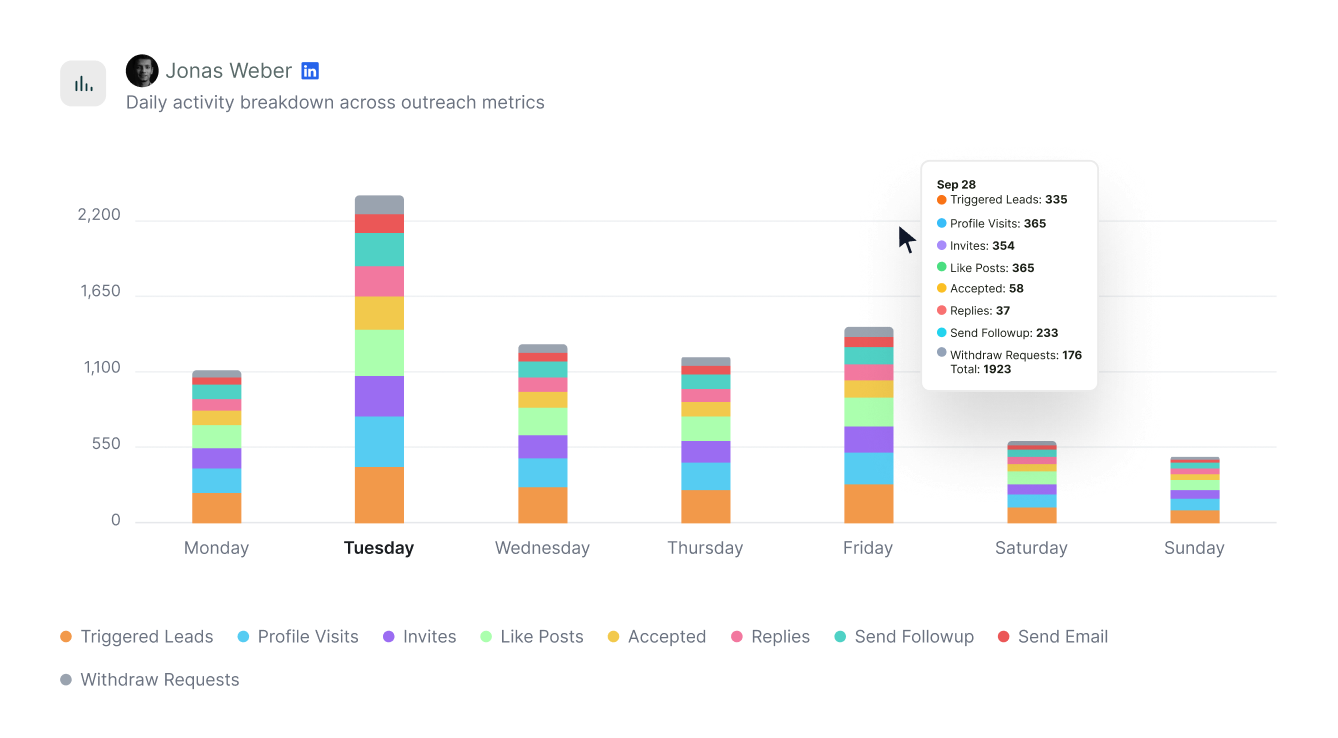
See what happened day by day
The dashboard includes a daily breakdown of active campaigns, so you can see how outreach activity changes across the reporting period.
Drill down
Go from the campaign result to the exact message
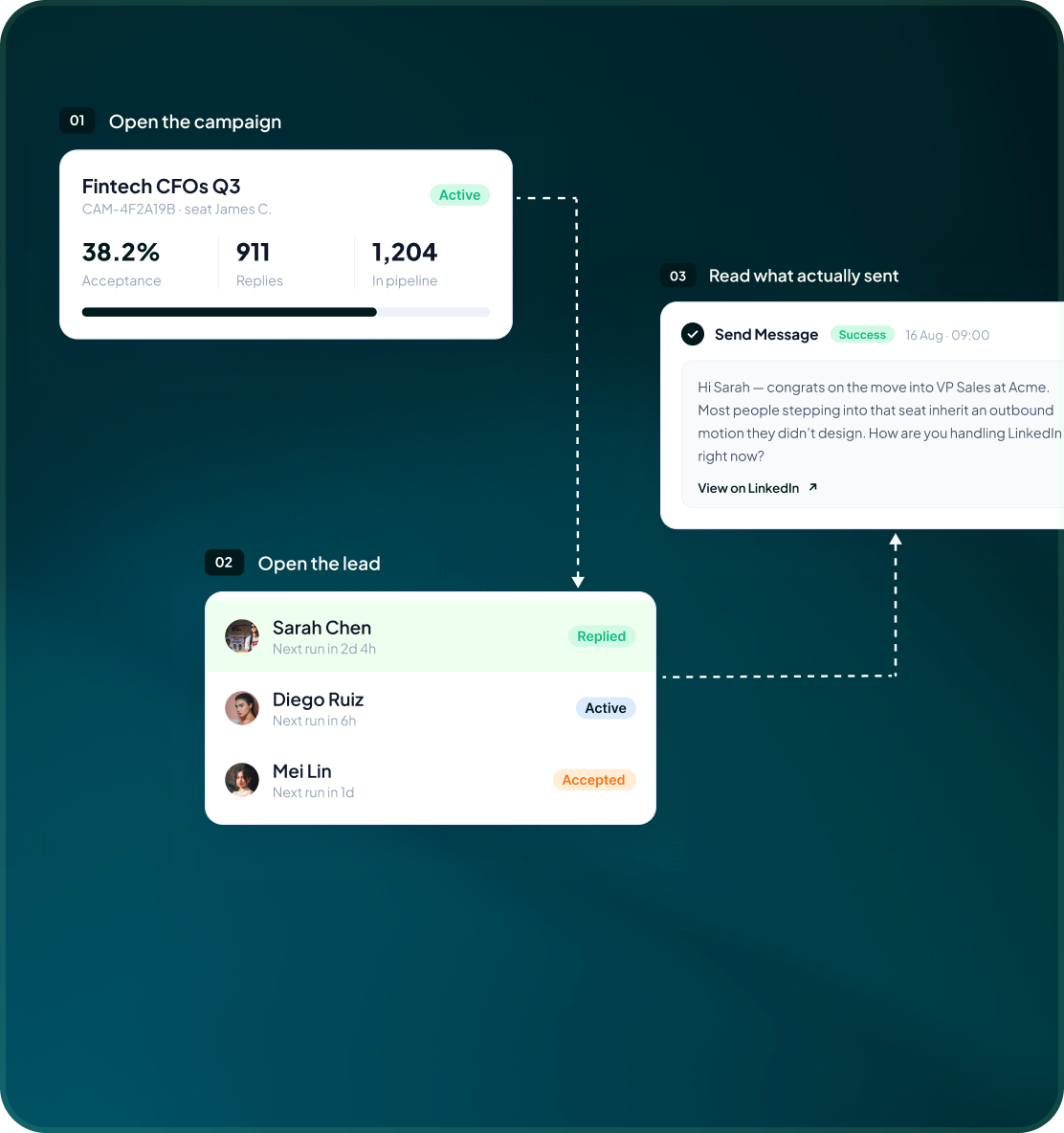
Use the campaign report to find where the result came from, open the relevant lead, then read the campaign activity that sits on that lead’s record.
- Reports can be viewed and exported by campaign, step, version, mailbox and lead.
- See the prospect’s campaign state, status, next scheduled action and the steps that already ran.
- Campaign Status records the step, timestamp, outcome and exact message that was sent.
By user
Give each person the numbers they own
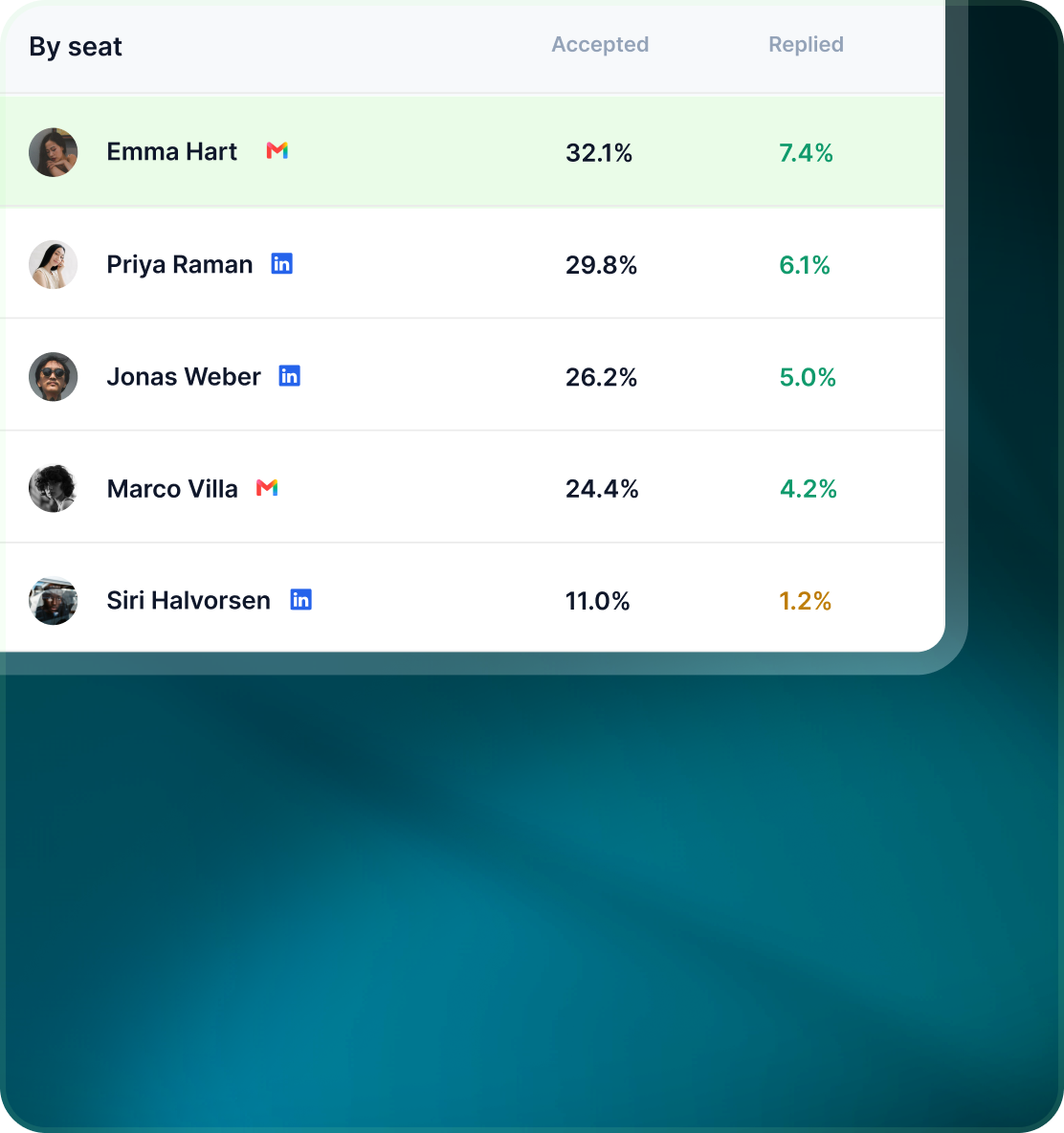
Each user sees statistics for the campaigns assigned to them. Owners and Admins keep the workspace-wide view for the team.
- A user’s dashboard reflects the campaigns they are responsible for.
- Use Total reach, Acceptance rate, Positive reply rate and Meetings booked to understand the work assigned to that user.
- Owners and Admins retain the wider workspace dashboard across the team.
Case studies
Teams who can show their work
“Using Get Me Leads has been one of our smartest investments. Our team actively engages with the platform, and we’ve seen a notable boost in our sales.”




“We’ve fully transitioned our operations to Get Me Leads. The product is user-friendly and adaptable, greatly helping us increase our lead generation.”


Build the list. Check who is in it. Then launch.
Questions
What the numbers do and do not cover
Yes. The lead’s Campaign Status shows each campaign step, its time and outcome, and the exact message that was sent.
Yes. Meetings booked are a headline dashboard metric. GML can connect Google, Outlook and Microsoft 365 calendars, and meetings booked through the product are recorded automatically.
The lead record keeps the campaign activity: each step, its timestamp and outcome, plus the exact message that was sent. Sends, skips, stops, pauses, errors and retries are also recorded with their reason.
Yes. GML can compare a campaign against the workspace’s own past campaign history and surface evidence-based insights. It does not compare performance against invented industry benchmarks.
Yes. Reports and exports are available by campaign, step, version, mailbox and lead. GML also keeps a log of HubSpot pushes and pulls with status and errors.
Yes. Each user sees statistics for their assigned campaigns, while Owners and Admins keep the workspace-wide dashboard.