


 Sales Navigator
Import Sales Navigator Leads. Refine Before Outreach.
Use a Sales Navigator URL as the source, bring the search result into GML and apply another layer of filtering before you publish the list.
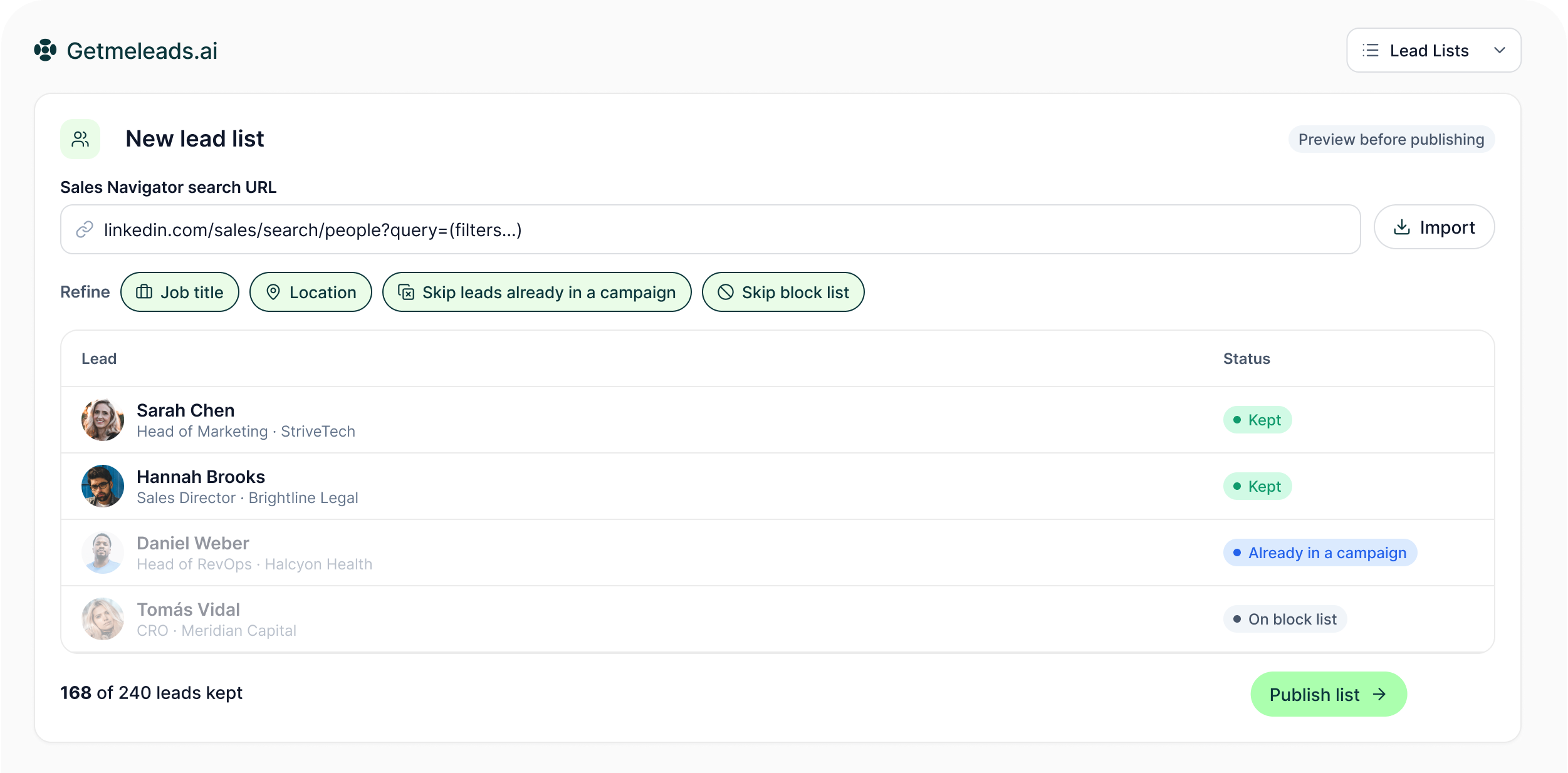
The LinkedIn outreach platform trusted by 300+ Companies and across 60+ Industries








The source
Keep the search. Refine the list around it.
GML brings the Sales Navigator result into the workspace, keeps its source URL with the list and lets you narrow the audience before publishing.
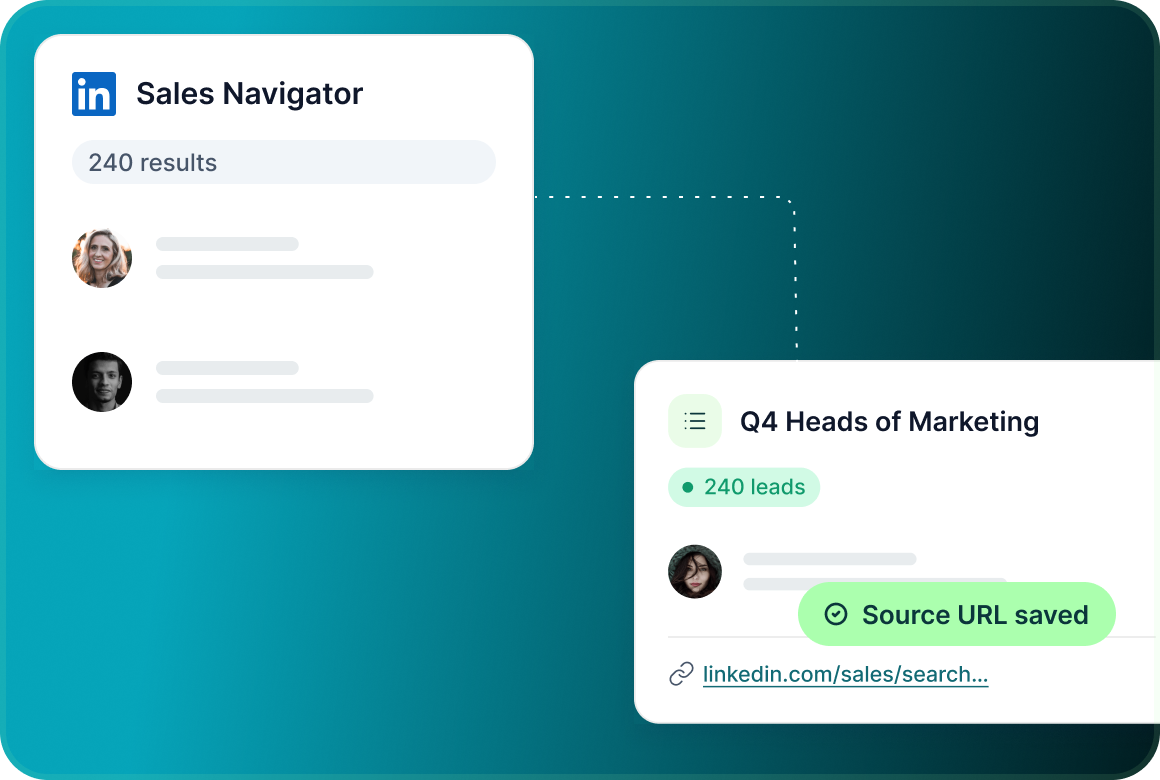
Bring in the whole result
Use the Sales Navigator search URL as the source. GML imports the result and stores that URL with the list.
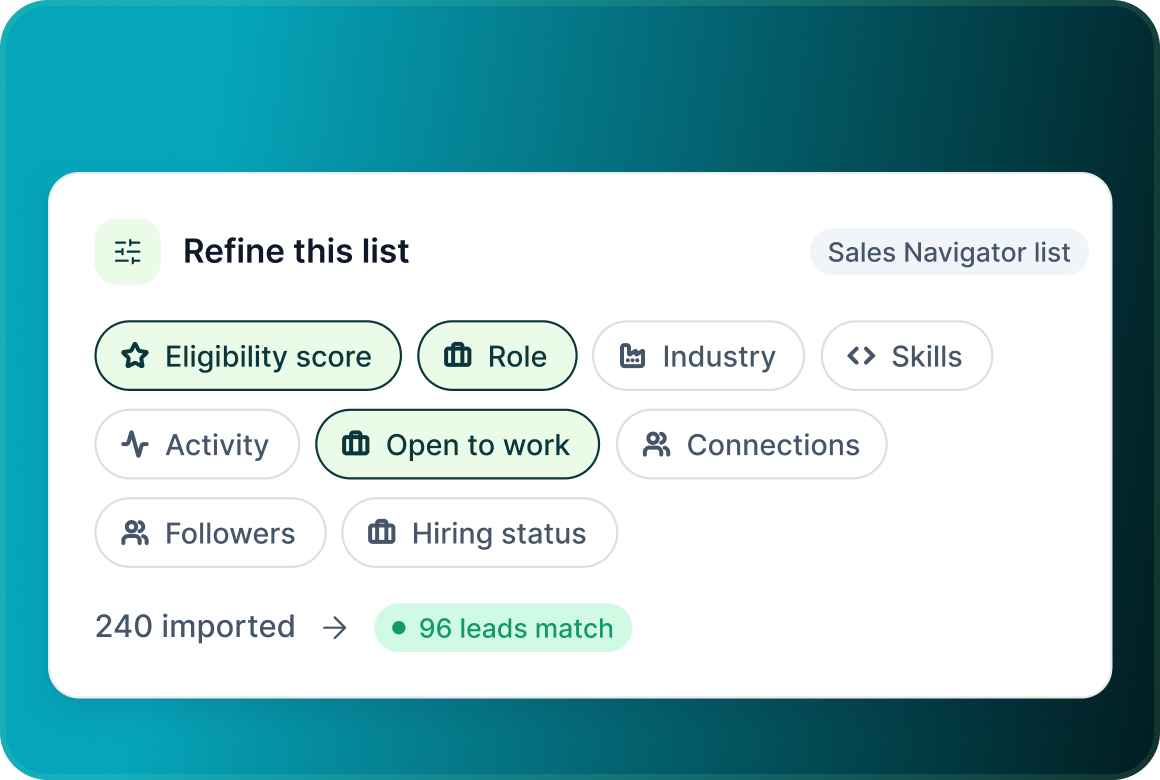
Filter before you publish
Refine a Sales Navigator list using eligibility score, role, industry, skills, activity, hiring status, open-to-work, connections and followers.
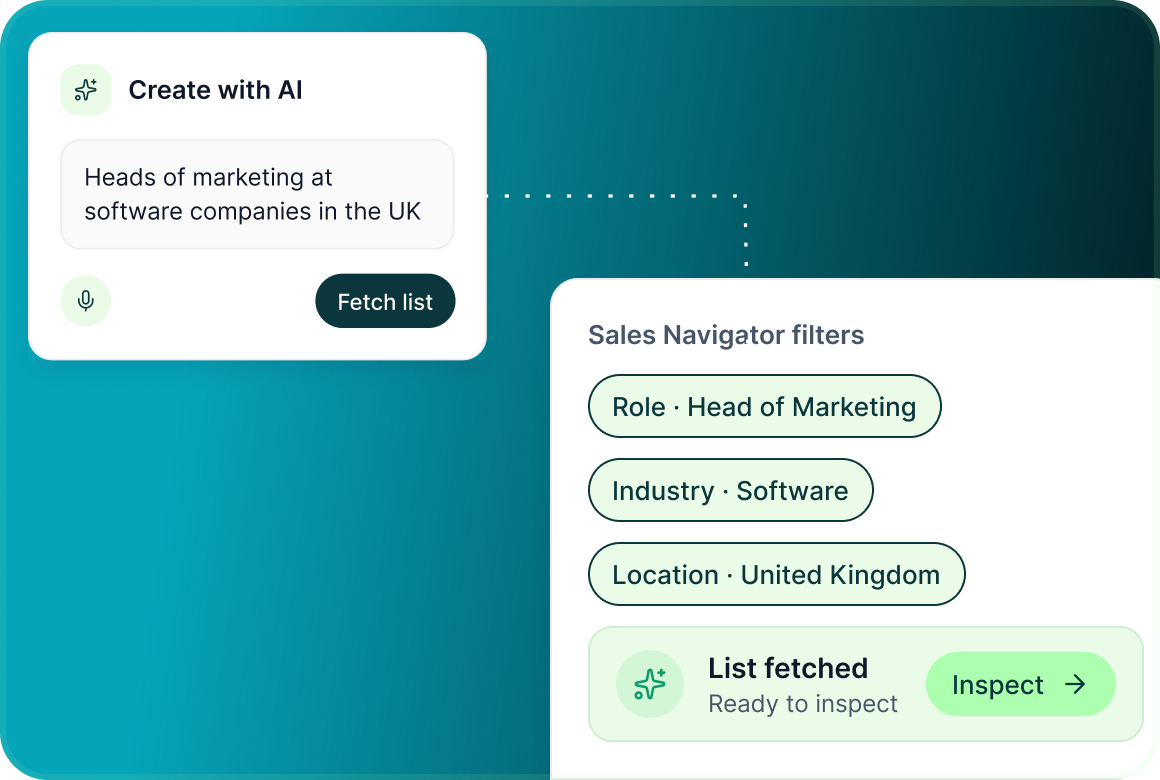
Or describe the audience to AI
With Create with AI, type or speak who you want to reach. AI turns that request into Sales Navigator filter values and fetches the list for you to inspect.
Before publication
The search result is a starting point. The published list is the decision.
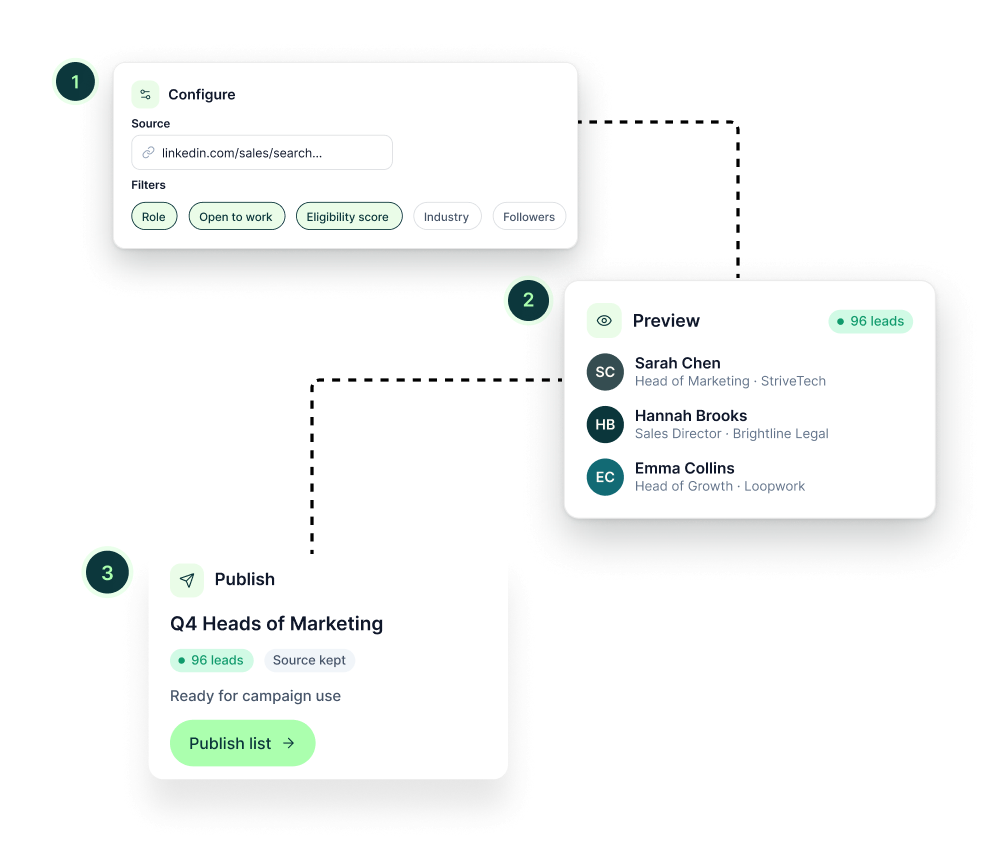
Use Configure to set the source and filtering, Preview to see the people and the count, then Publish when the audience is ready for campaign use.
AI targeting
Describe the audience instead of building every filter by hand
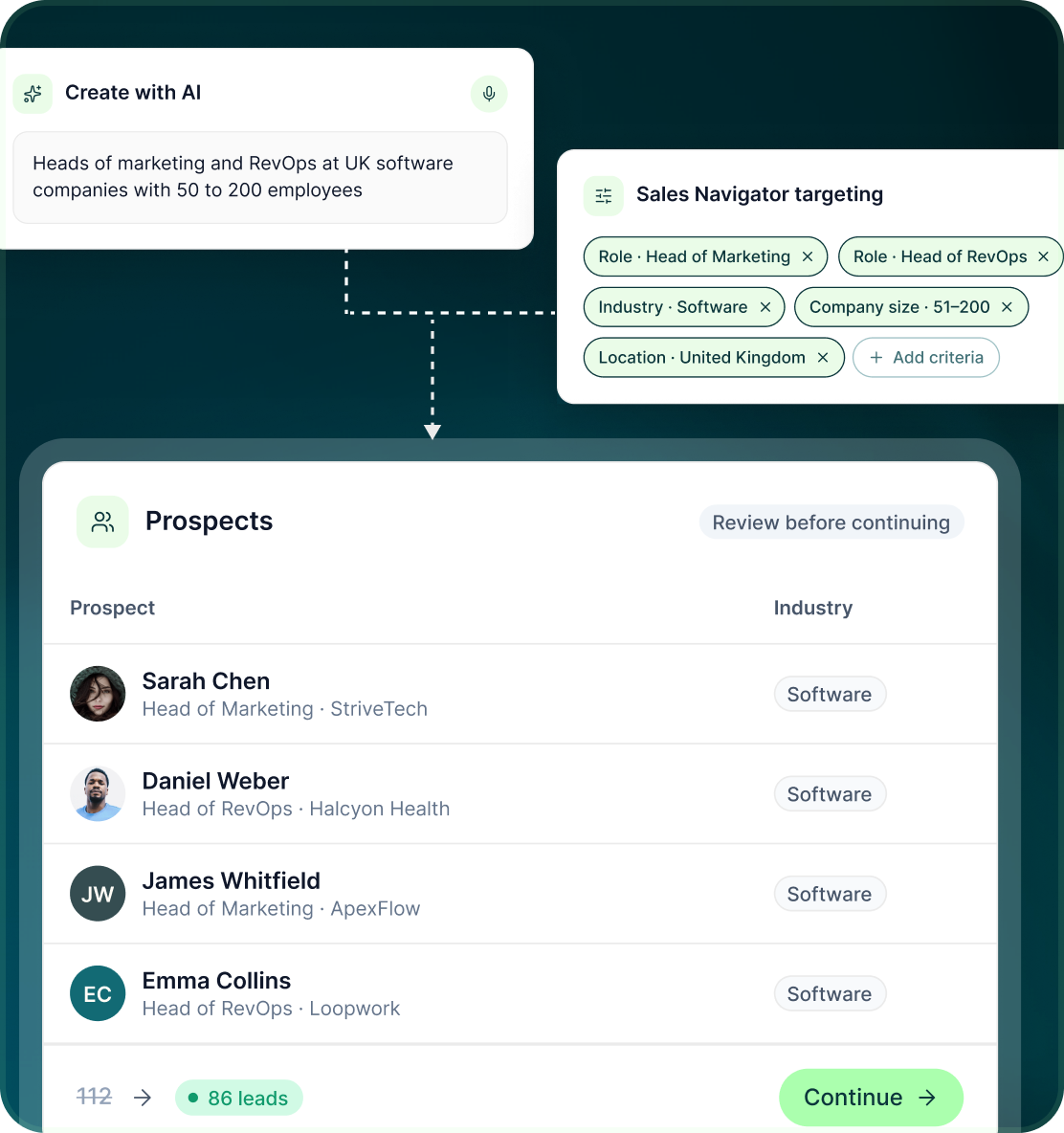
Create with AI uses Sales Navigator's own targeting values, but keeps the audience visible for human review before the campaign proceeds.
- Describe the company profile and personas you want to reach.
- GML translates the request into Sales Navigator targeting and fetches the resulting prospects.
- Review the filters, add or remove criteria and watch the list update before continuing.
Saved source
Keep the source attached without silently changing it later
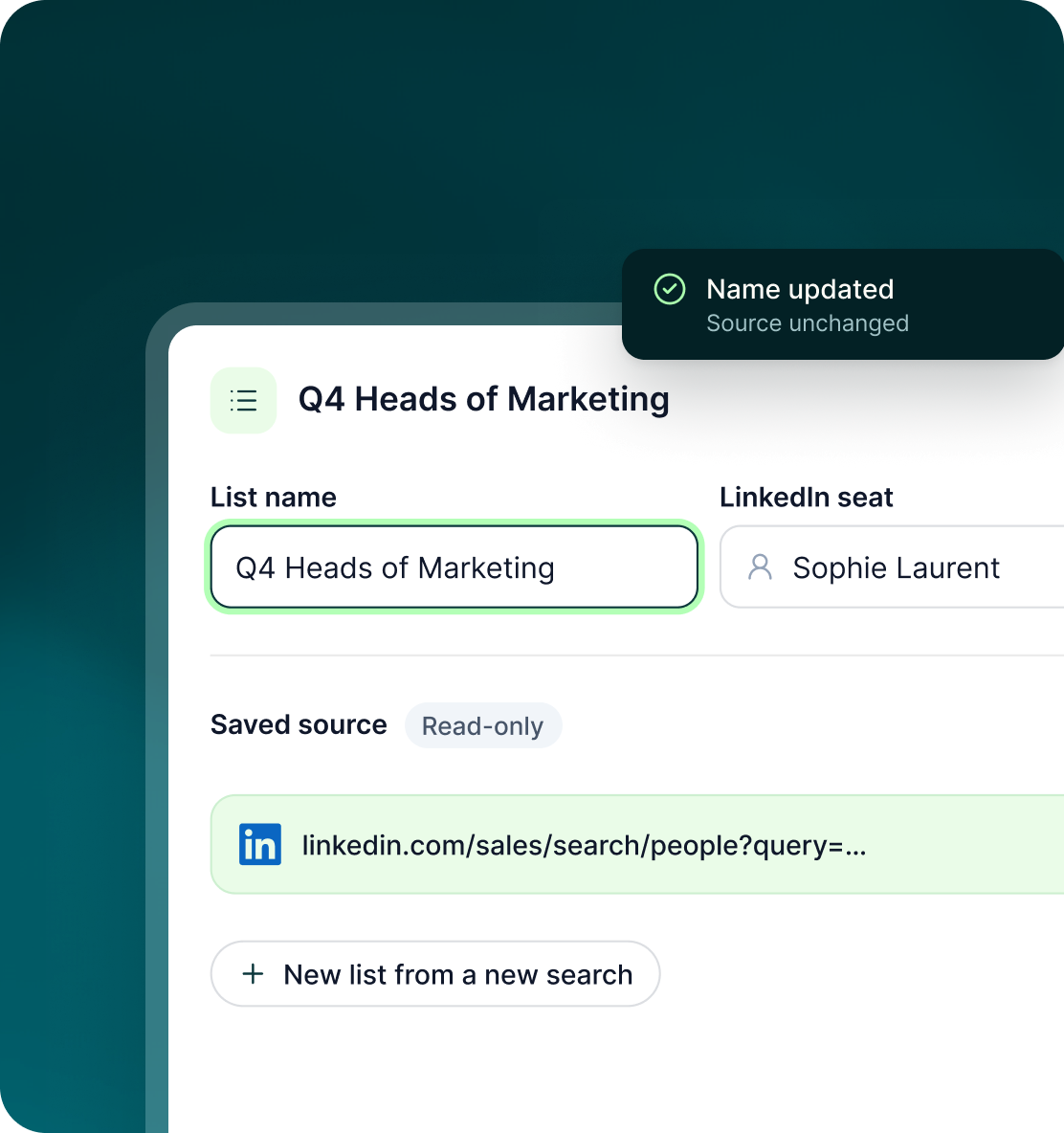
The saved list retains its Sales Navigator source while normal list-management changes remain separate from the underlying search.
- You can see where the list originally came from.
- Change its name or associated seat without re-running the source search.
- If you need a different source search, create it deliberately rather than changing the original in the background.
Case studies
Teams who can show their work
“Using Get Me Leads has been one of our smartest investments. Our team actively engages with the platform, and we’ve seen a notable boost in our sales.”




“We’ve fully transitioned our operations to Get Me Leads. The product is user-friendly and adaptable, greatly helping us increase our lead generation.”


Build the list. Check who is in it. Then launch.
Questions
Using Sales Navigator with GML
Yes. This page covers the Sales Navigator source specifically. You do not need Sales Navigator for every other GML sourcing method.
The result is imported and the source URL is stored with the resulting list.
Yes. Advanced list-creation filters include eligibility score, role, industry, skills, activity, hiring status, open-to-work, connections and followers.
Yes. Preview shows name, company, location and count before anything is queued.
Yes. Create with AI turns a typed or spoken request into Sales Navigator filter values and fetches the resulting list.
The saved list can be renamed or moved to another seat, but its search settings remain read-only.