


 Flow builder
Build Visual Sequences. See Every Step.
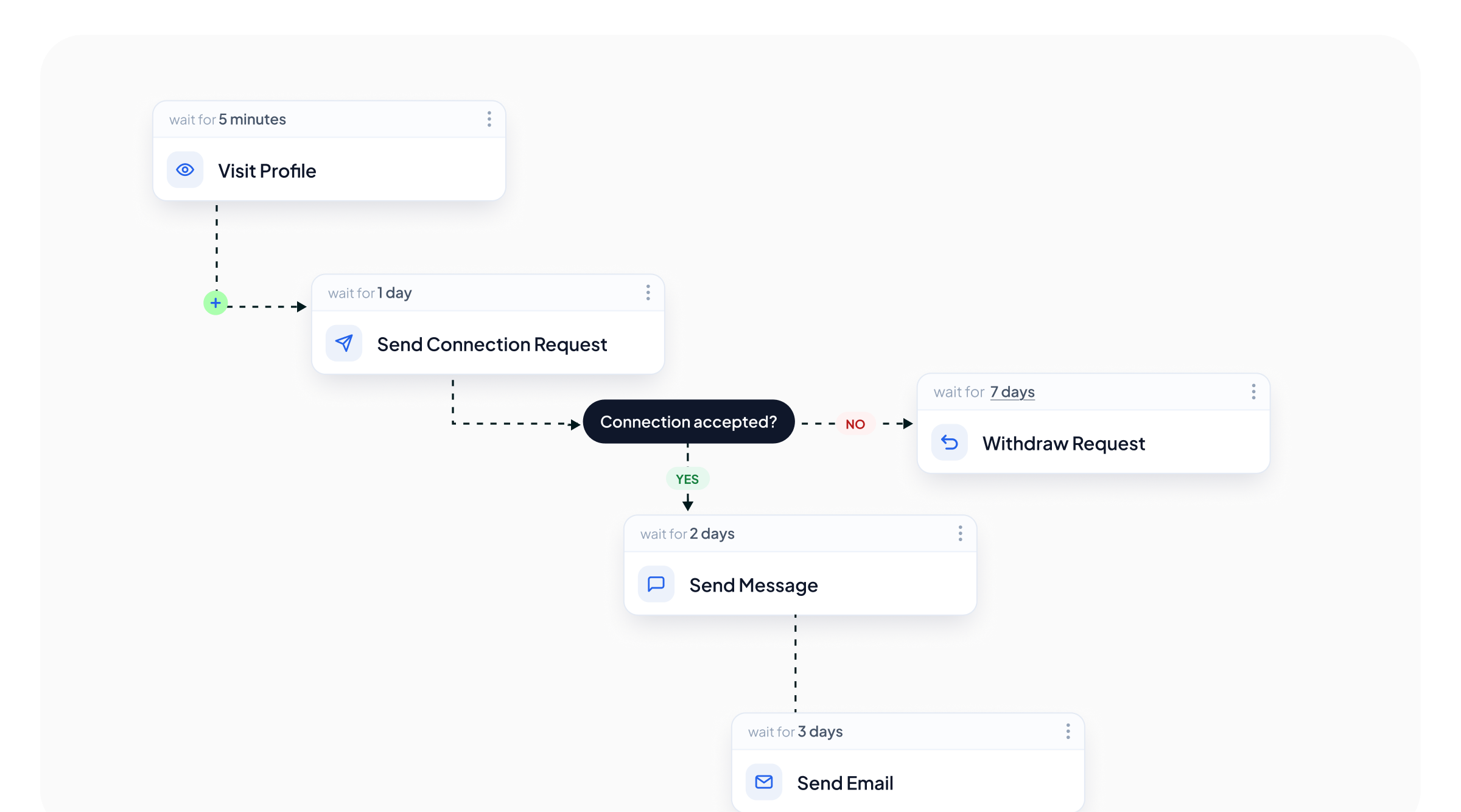
12 actions and 6 conditions on one visual canvas. Set the next step, choose how long it waits, branch the path and move between channels without hiding the logic in a settings screen.
The Parts
12 actions, 6 conditions, and delays you set yourself
Everything that shapes the sequence is visible on the canvas. Add the step, configure it, and see where each branch goes before the campaign starts.
Delays you control
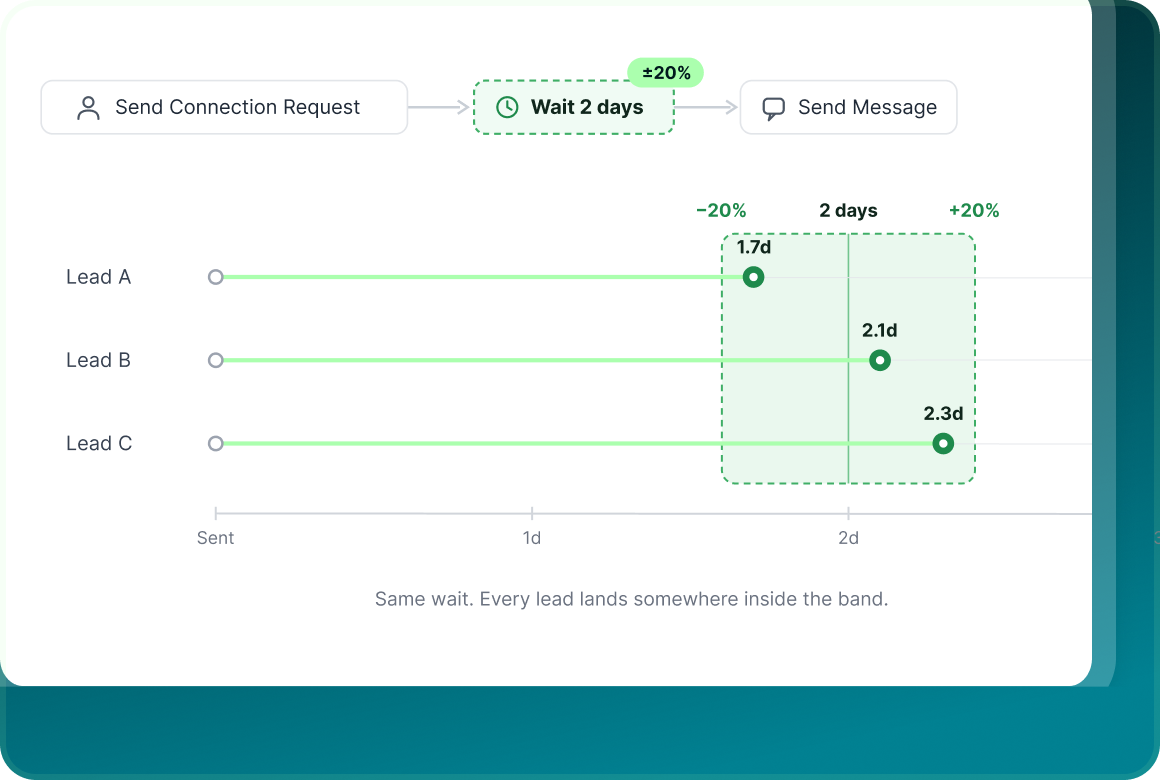
Every action starts with a duration and unit measured from when the previous step completes. The builder shows the timing back to you in plain English.
Twelve Actions
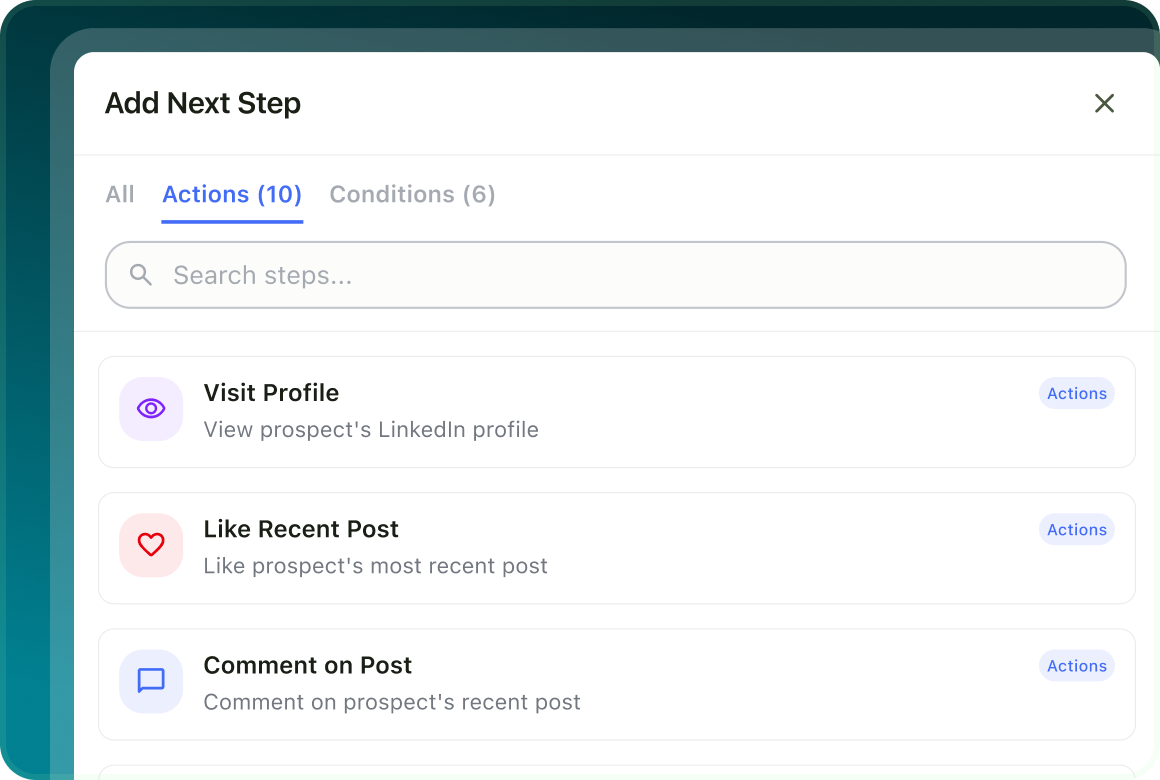
Profile activity, connection requests, LinkedIn messages, InMail, email and lead-management actions all live in the same step picker.
Six Conditions
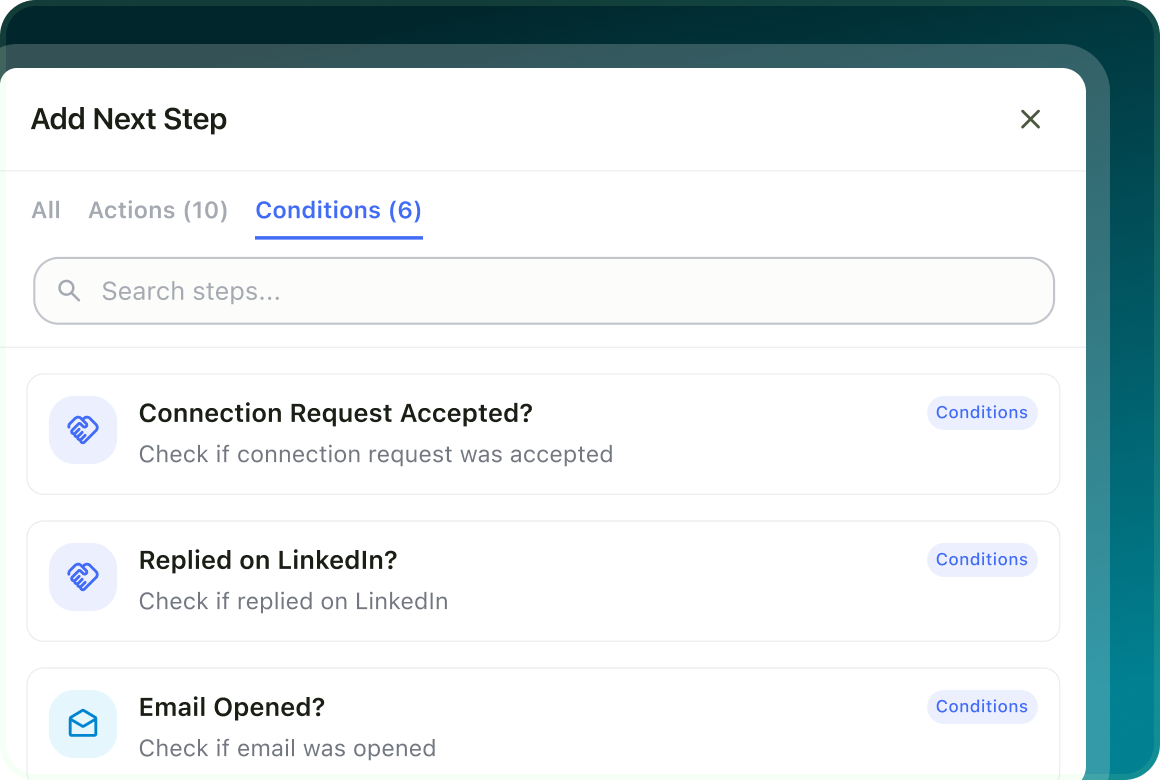
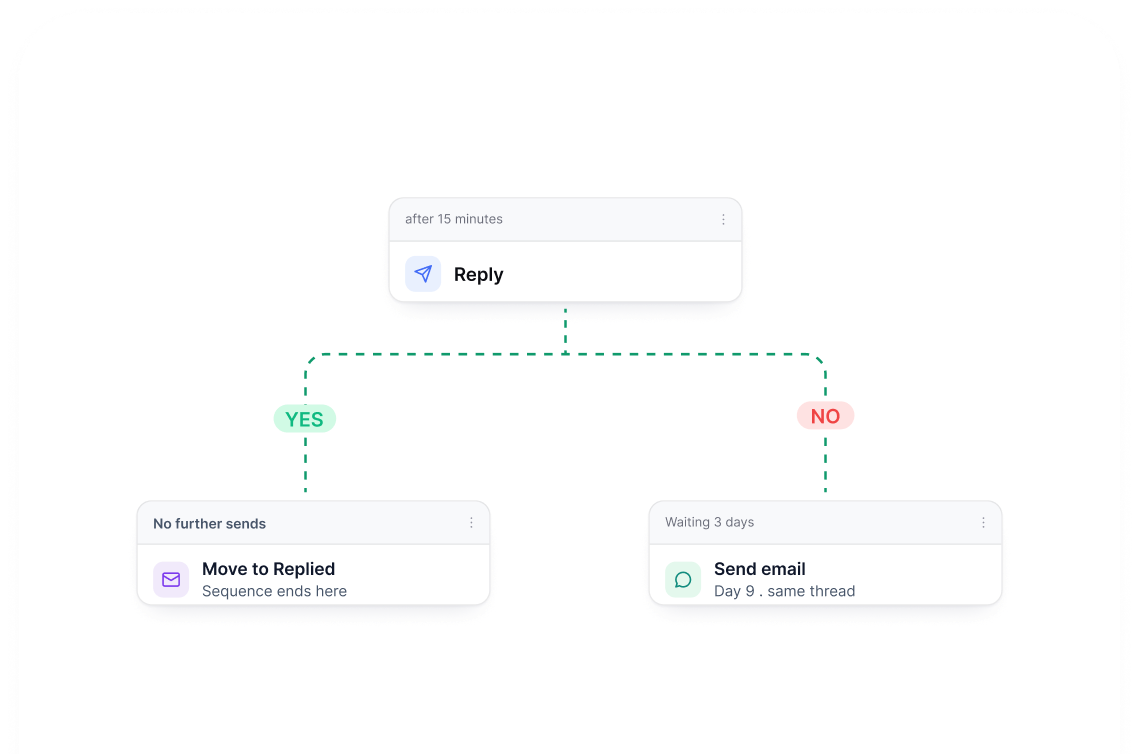
Branch the flow around what the prospect actually did. Each condition opens a Yes and No path on the same canvas.
Conditions
What the prospect does changes what happens next
A condition splits the sequence into Yes and No paths. Check an acceptance, reply, open, click or connection status and send each prospect down the path that fits what happened.
Node settings
Open a sending step and configure it in place
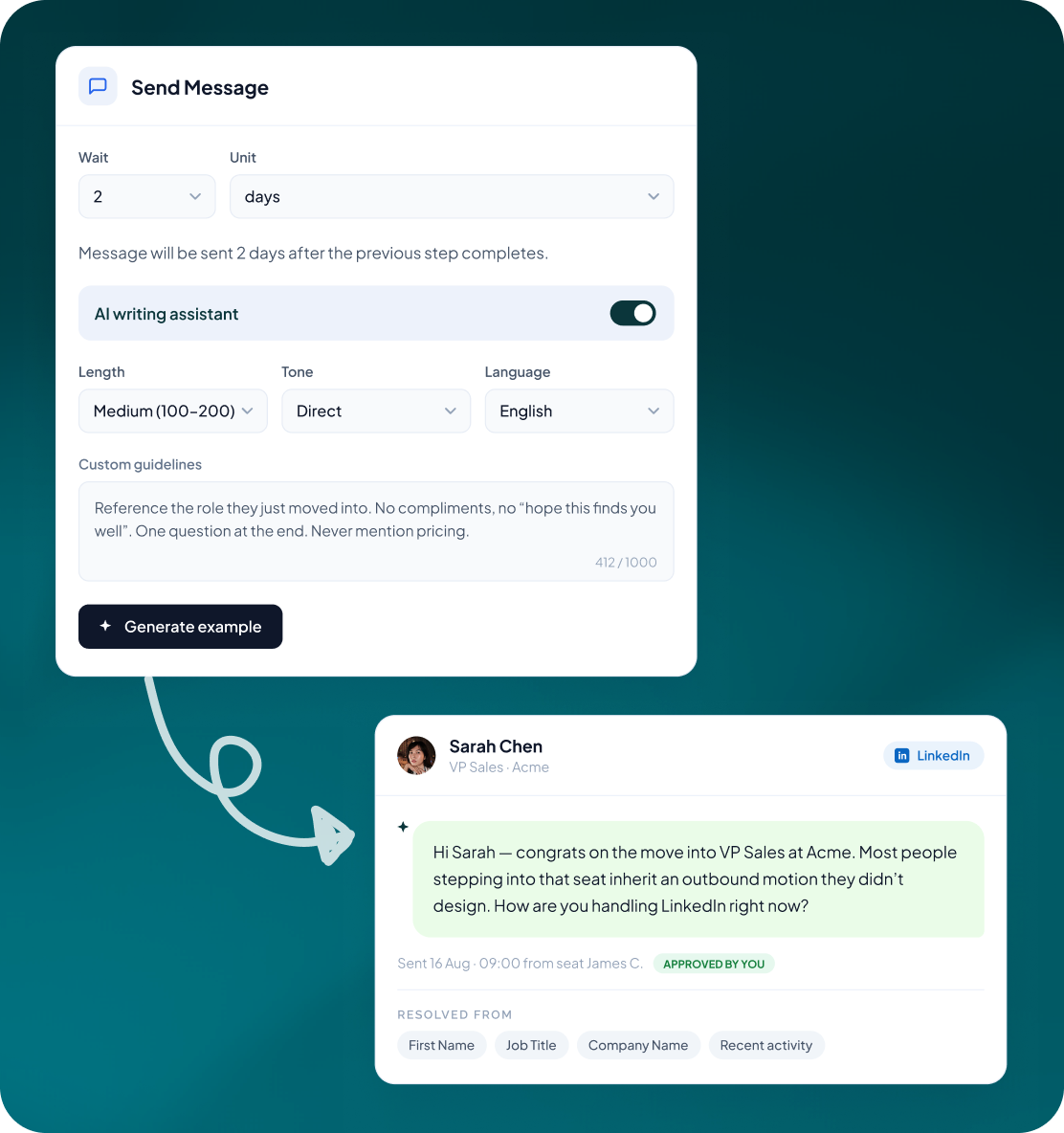
Click a message step to set its delay, writing preferences and guidance without leaving the flow. Generate an example, review the result and approve generated copy before it sends.
- Choose tone, length and language on each sending step.
- Add Custom Guidelines and, on supported LinkedIn steps, use recent activity to ground the message in something the lead actually did.
- Generated messages are held for review. Approve, edit or reject them before anything goes out under your name.
Blacklist and duplicates
Build the sequence once. Use it again where you need it.
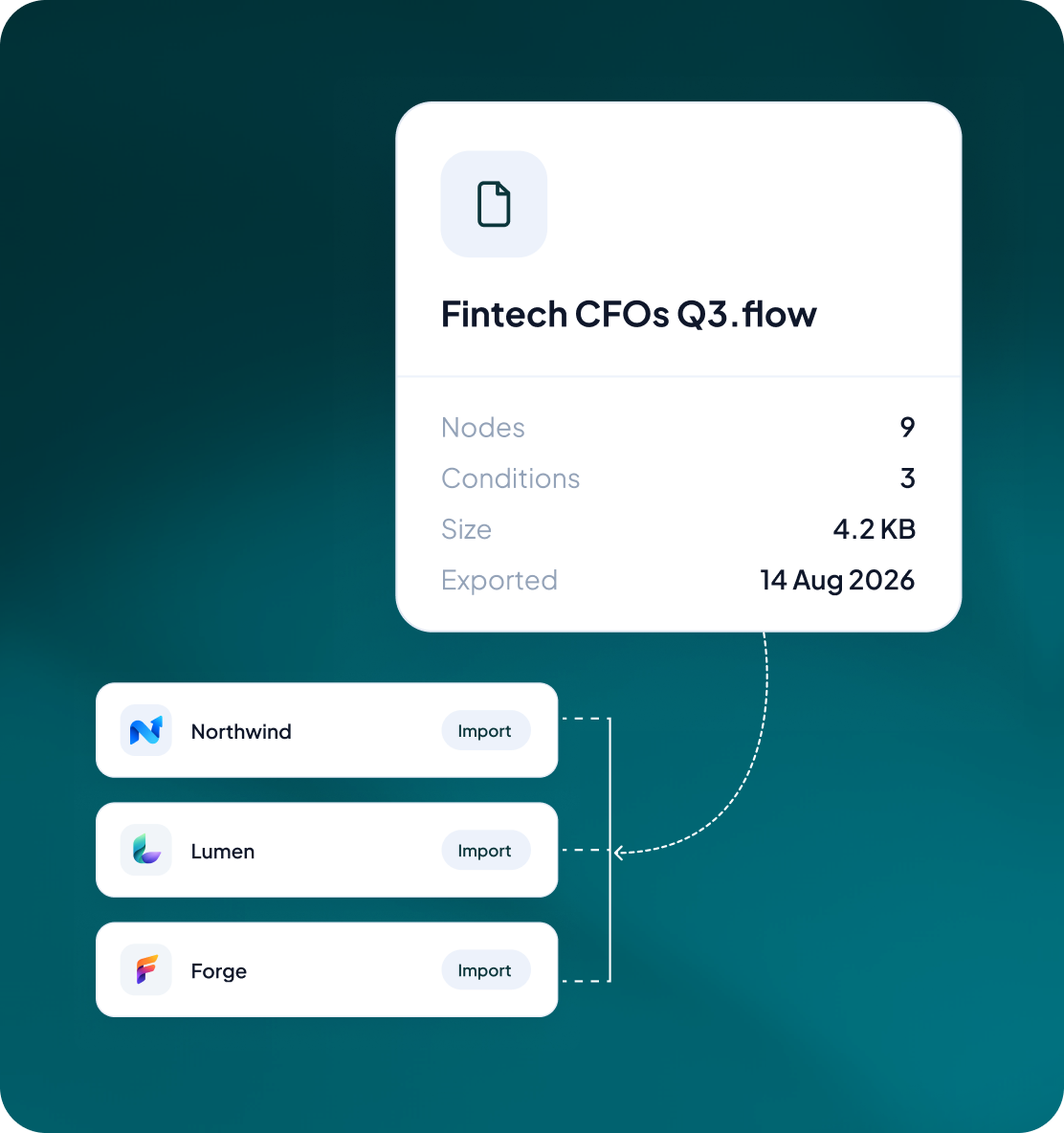
Download the current flow as a file and import it into another campaign. It gives teams and agencies a practical way to standardise the sequence without rebuilding it node by node.
- Download the sequence you have already built.
- Load the same flow into another campaign instead of starting from an empty canvas.
- Use flow files to standardise how reps or client workspaces run the same outreach play.
Case studies
Teams who can show their work

“Using Get Me Leads has been one of our smartest investments. Our team actively engages with the platform, and we’ve seen a notable boost in our sales.”




“We’ve fully transitioned our operations to Get Me Leads. The product is user-friendly and adaptable, greatly helping us increase our lead generation.”


Build the list. Check who is in it. Then launch.
Questions
Before you build your first flow
The LinkedIn flow builder requires at least two linked steps. The separate email sequence builder supports up to 12 steps.
For an active LinkedIn campaign, the sender seat, lead list and flow structure are locked. To change the structure, export the flow and re-import it into a new campaign. In an active email campaign, unsent content can still be edited, but the sequence structure is locked.
A real reply stops further outreach to that lead across channels, so the rest of the sequence does not continue as if nothing happened.
No. A delay is measured from when the previous step completes for each individual lead. Sending also continues to respect the sender's limits, sending days and sending window.
Yes. A LinkedIn campaign can rotate leads across several LinkedIn seats, or you can reuse the same sequence through templates and flow files. Once a lead is assigned to a seat, that lead stays on the same seat for the whole sequence.
It contains the current flow so it can be loaded into another campaign. Use it to carry the same sequence between campaigns, reps or client workspaces.