


 LinkedIn Search
Turn LinkedIn Searches into Lead Lists You Can Review
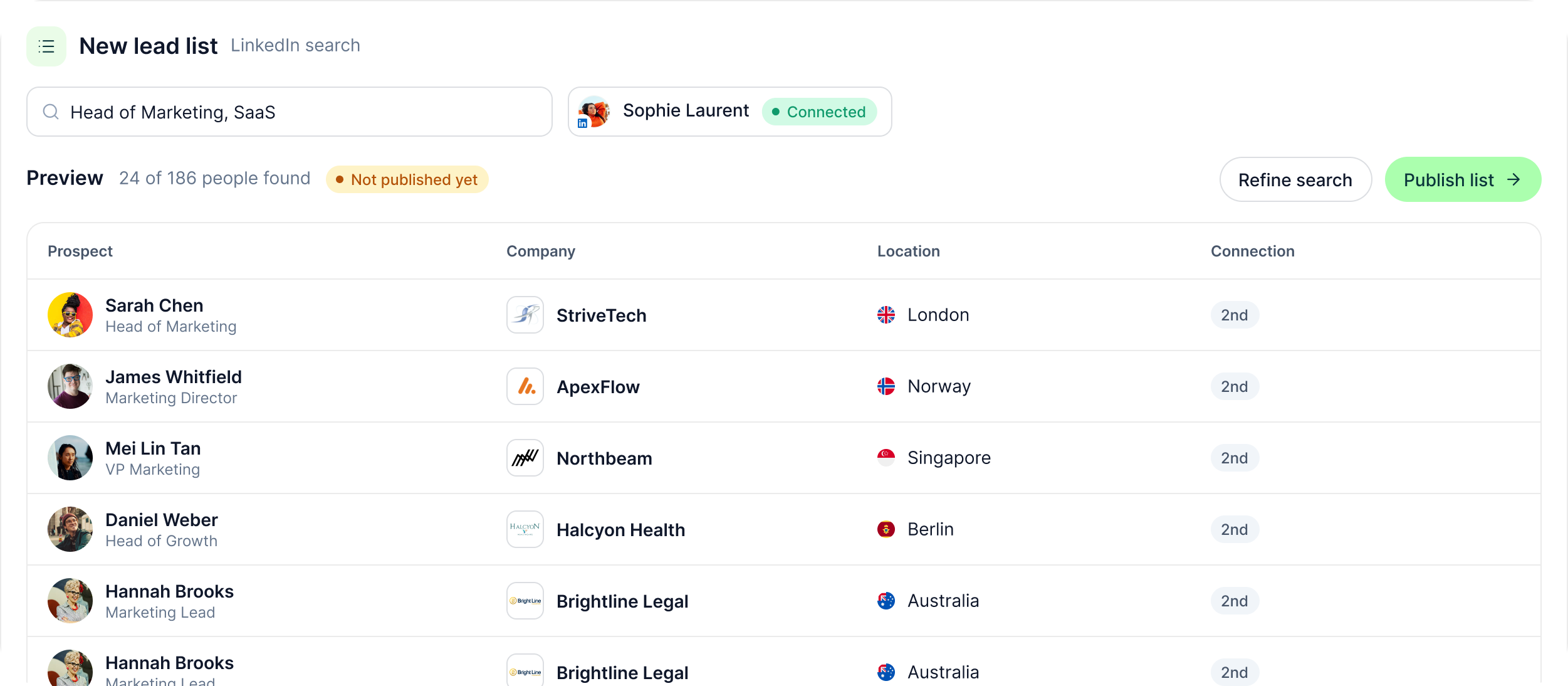
Search by term through a connected LinkedIn account, preview who GML found and publish the list only when the audience looks right.
The LinkedIn outreach platform trusted by 300+ Companies and across 60+ Industries








From search to list
Three steps between the search and the campaign
GML keeps the sourcing step visible. Run the search through a connected account, inspect the people it returns and clean the list before outreach begins.
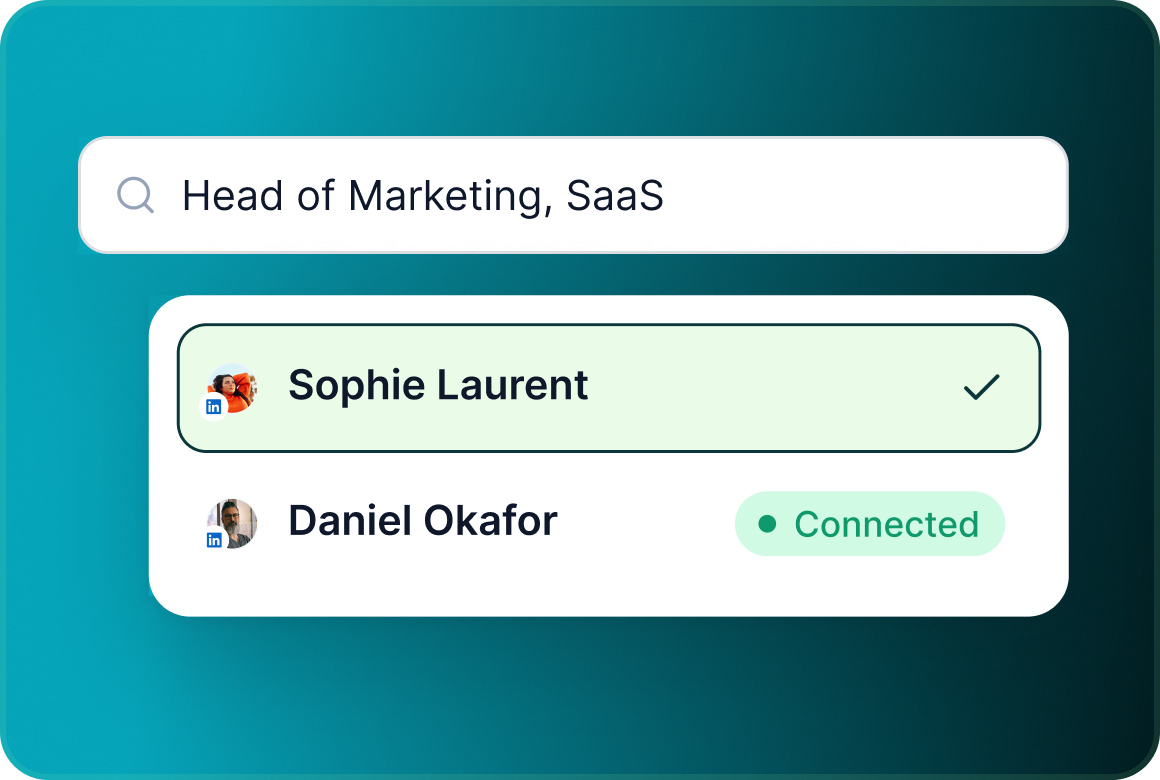
Search through a connected account
Run a LinkedIn search by search term through one of the LinkedIn accounts connected to your workspace.
Preview the people first
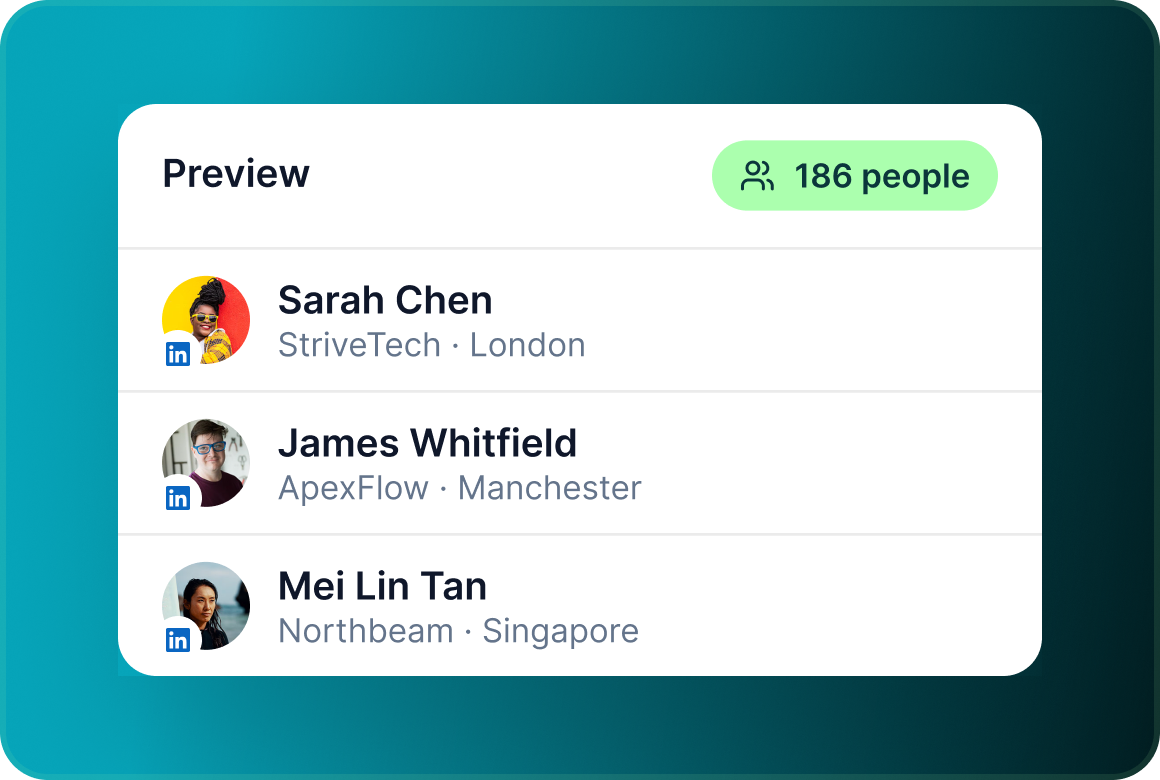
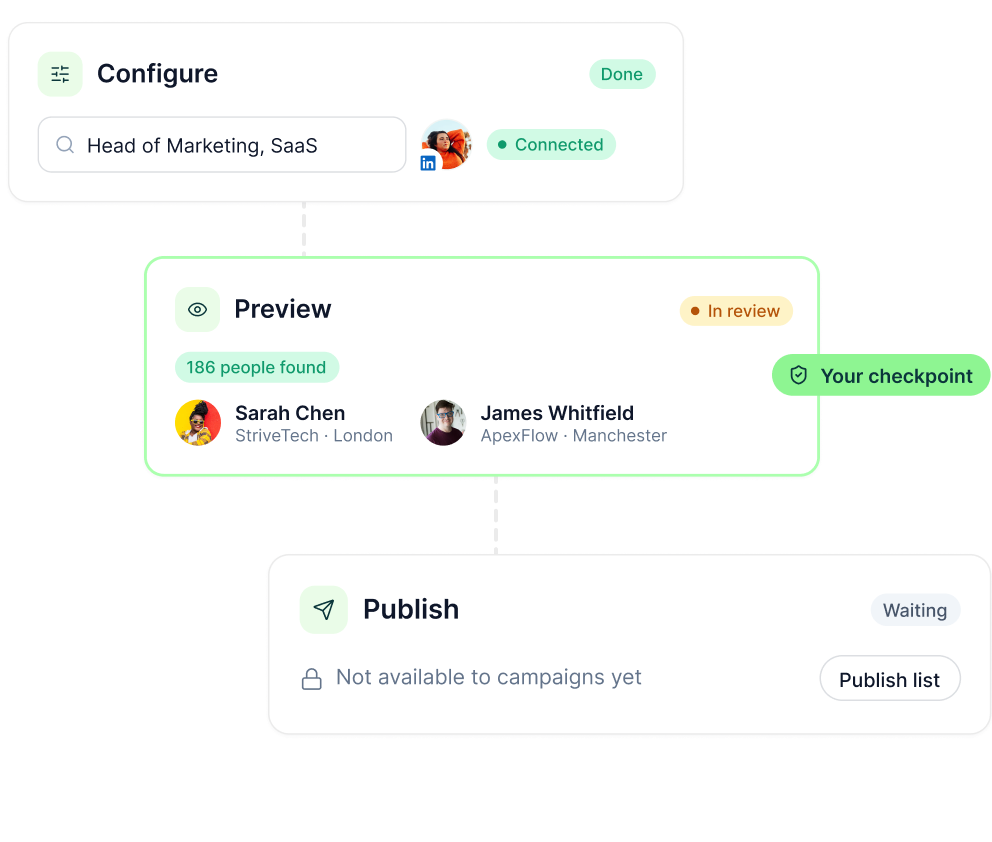
Before anything is queued, Preview shows the prospect's name, company, location and the number of people in the list.
Remove who should not be there
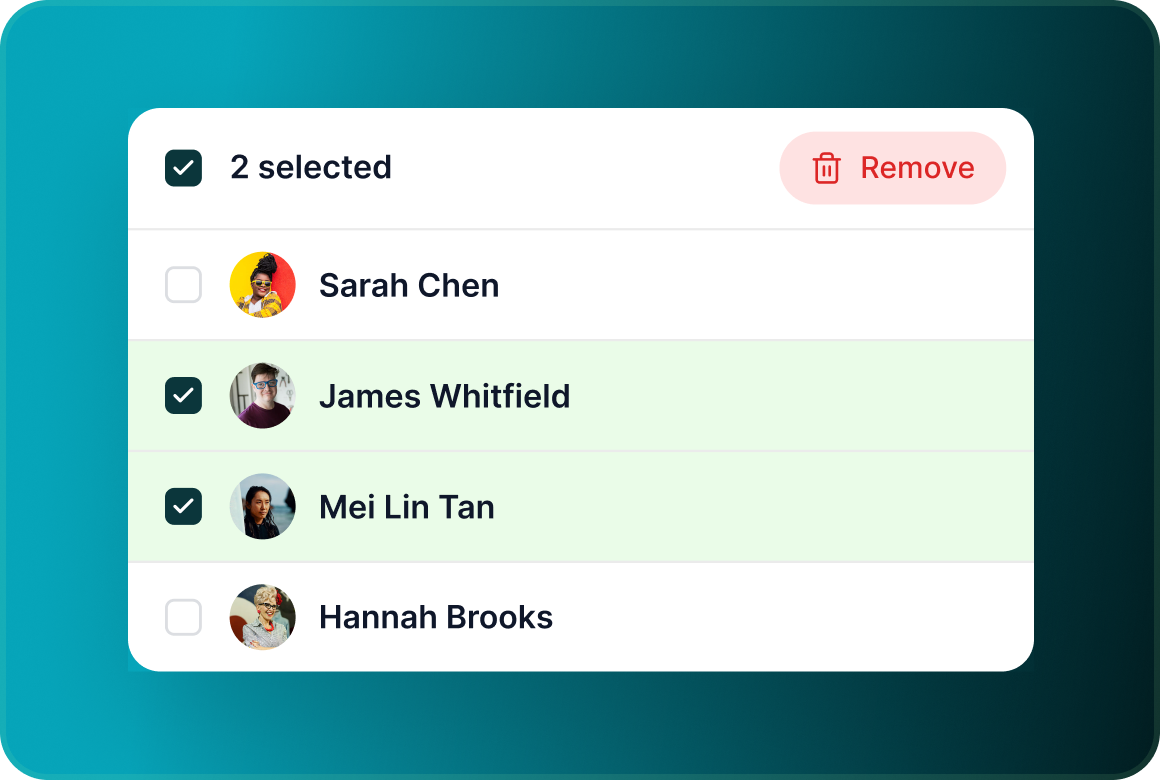
Delete individual prospects or remove them in bulk before the campaign launches without affecting the rest of the list.
The list workflow
The list does not become outreach the moment you search
Every lead list moves through Configure → Preview → Publish, giving you a checkpoint between finding people and making that audience available for campaign work.
List management
Change the list details without pretending the search ran again
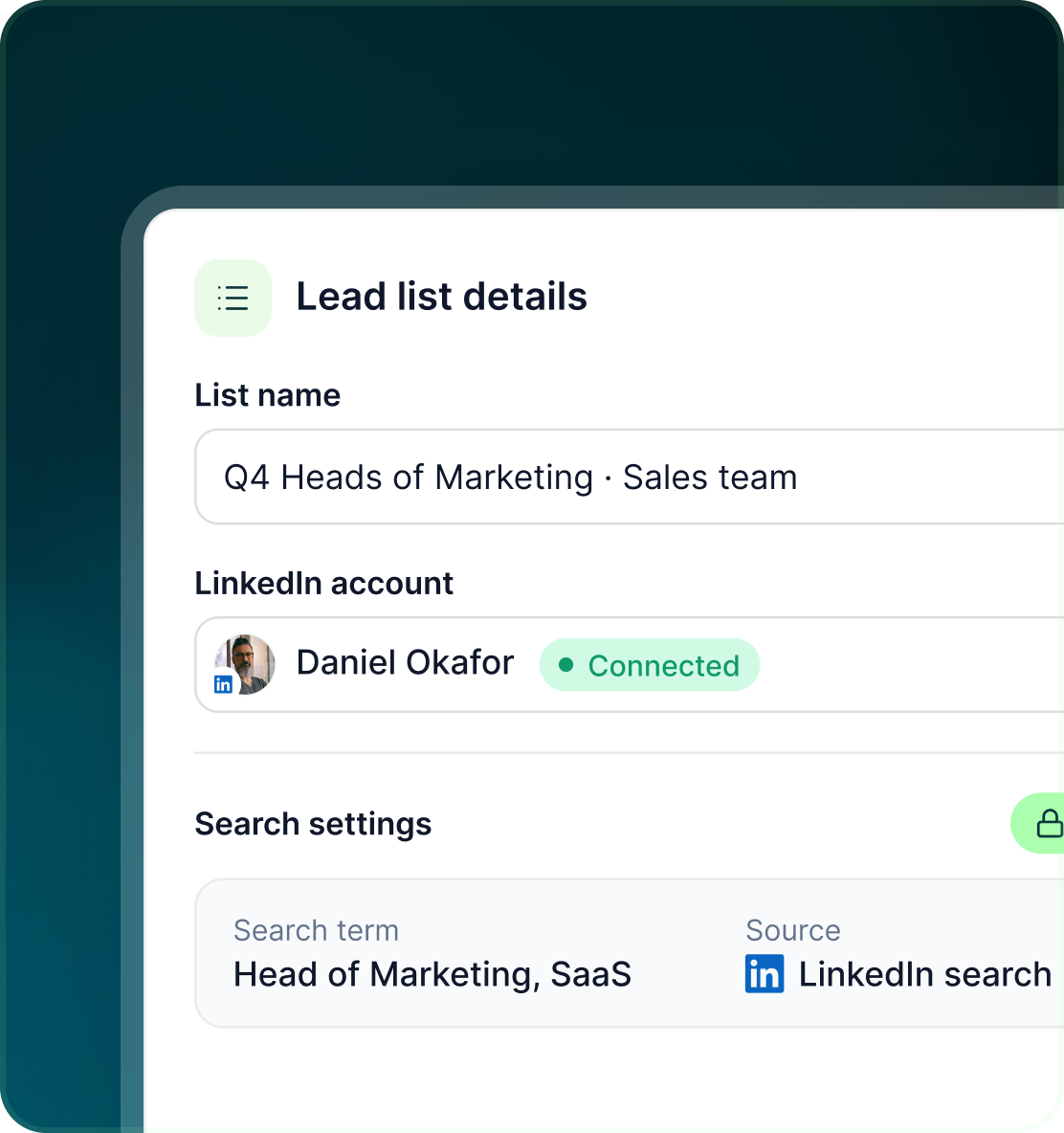
Once the list has been created, GML separates changes to the saved list from the original search that produced it.
- Give the saved list a name that makes sense for the campaign or team using it.
- Change the account associated with the list without re-running the original search.
- Search settings are read-only after creation. Renaming the list or changing its account does not silently run a different search.
Sales Navigator
You do not need Sales Navigator for every list
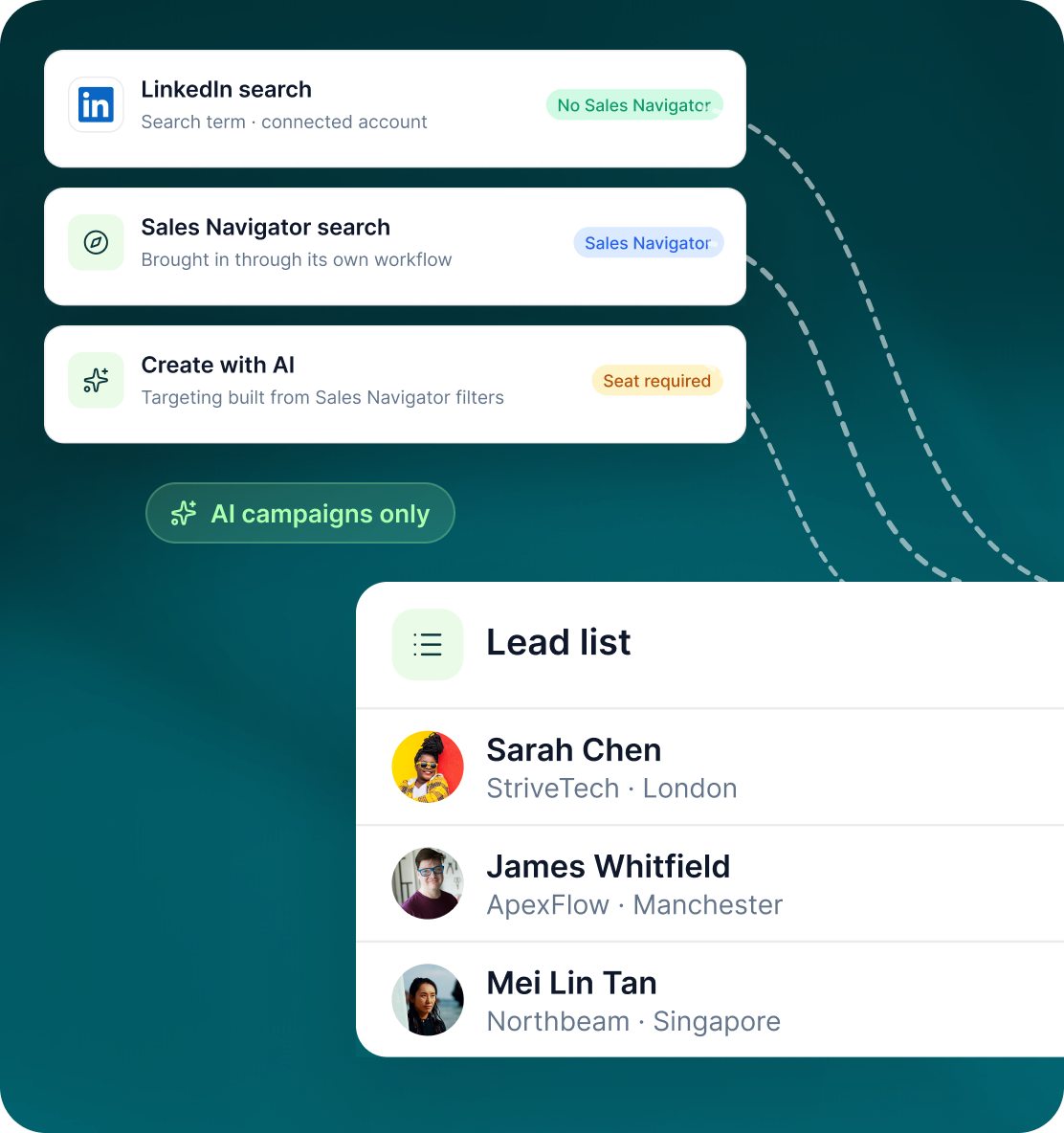
Standard LinkedIn Search can be used through a connected LinkedIn account. Sales Navigator is another sourcing route rather than a requirement for every GML campaign.
- Use a search term through the connected account.
- A Sales Navigator search can be brought into GML through its own workflow.
- GML's AI campaign-creation workflow requires a Sales Navigator seat because AI builds the targeting using Sales Navigator filters.
Case studies
Teams who can show their work
“Using Get Me Leads has been one of our smartest investments. Our team actively engages with the platform, and we’ve seen a notable boost in our sales.”




“We’ve fully transitioned our operations to Get Me Leads. The product is user-friendly and adaptable, greatly helping us increase our lead generation.”


Build the list. Check who is in it. Then launch.
Questions
Using LinkedIn Search in GML
No. Standard LinkedIn Search works through a connected LinkedIn account. Sales Navigator is a separate sourcing option.
A connected LinkedIn account and the search term you want to use.
Yes. Preview shows name, company, location and the total count before anything is queued.
Yes. Prospects can be removed individually or in bulk without affecting the rest of the list.
The saved list can be renamed or moved to another seat, but its original search settings are read-only. Those changes do not re-run the search.
Create with AI specifically builds its targeting through Sales Navigator and therefore requires a Sales Navigator seat.