


 CSV & Manual Import
Import Your Lead Lists. Make Every Field Outreach Ready.
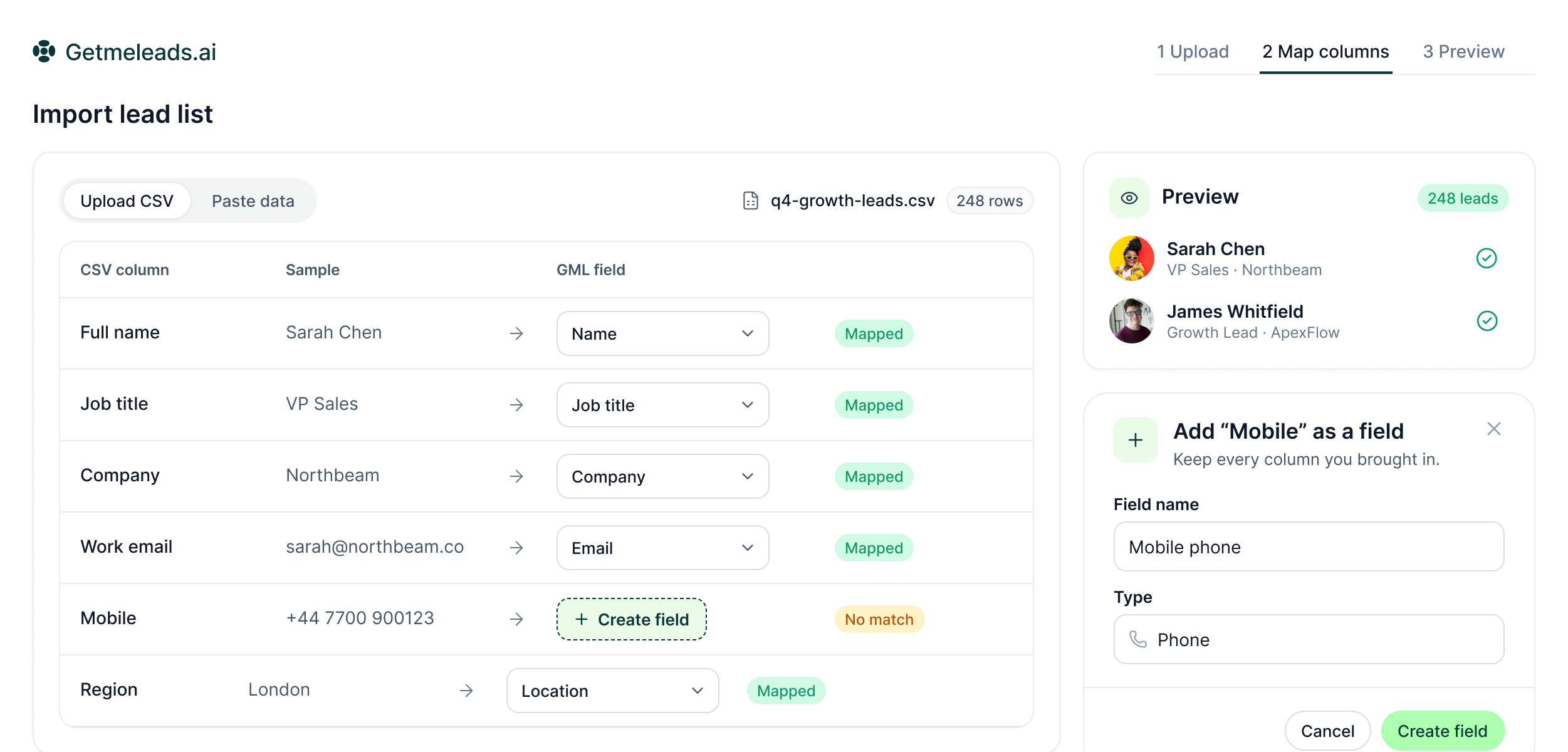
Upload a file or paste the data you already work with. GML maps the columns, lets you create missing fields and gives you a preview before the list enters the workspace.
The LinkedIn outreach platform trusted by 300+ Companies and across 60+ Industries








The import
Do not rebuild the data just to move it into outreach
GML accepts the list you already maintain and gives you the tools to map it into campaign-ready lead data.
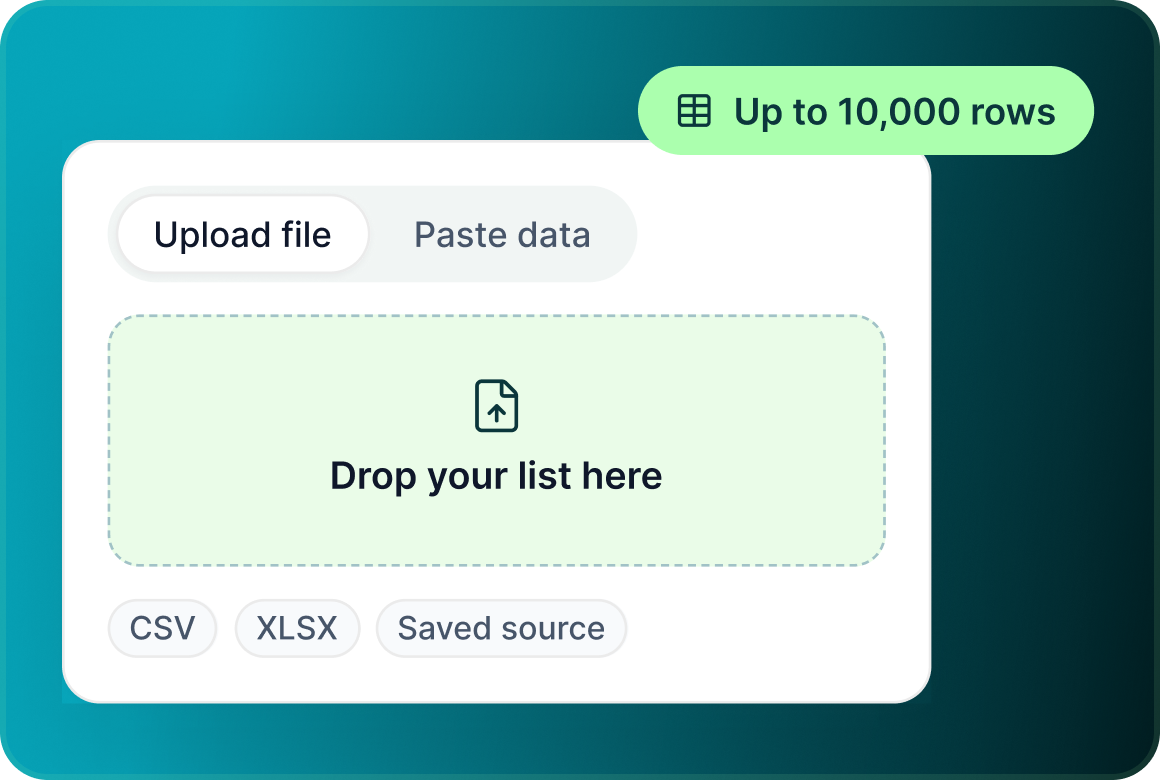
Upload or paste
For email-list imports, bring in CSV or XLSX files of up to 10,000 rows, use manual paste or start from another supported saved source.
Map the fields
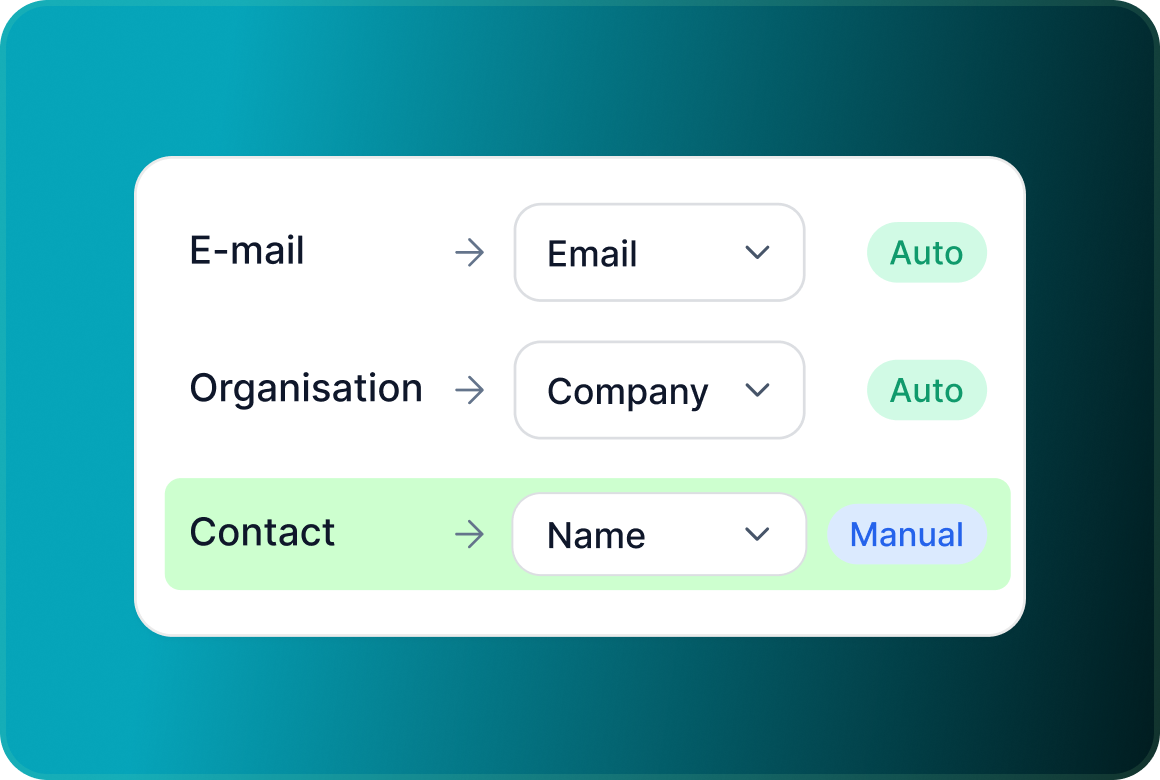
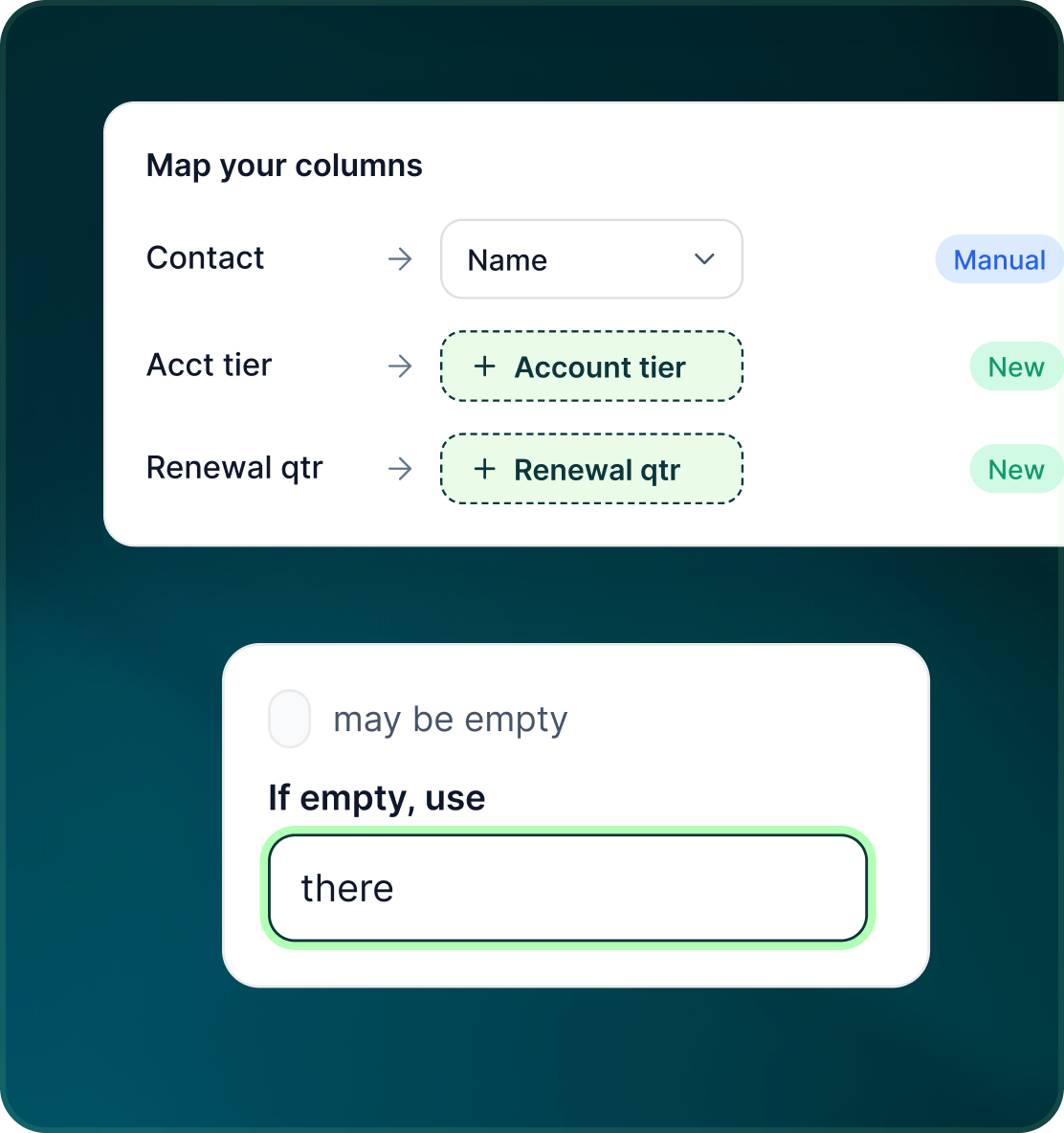
Headers are mapped automatically by synonym where possible, with manual override when your file uses different names.
Add what your file needs
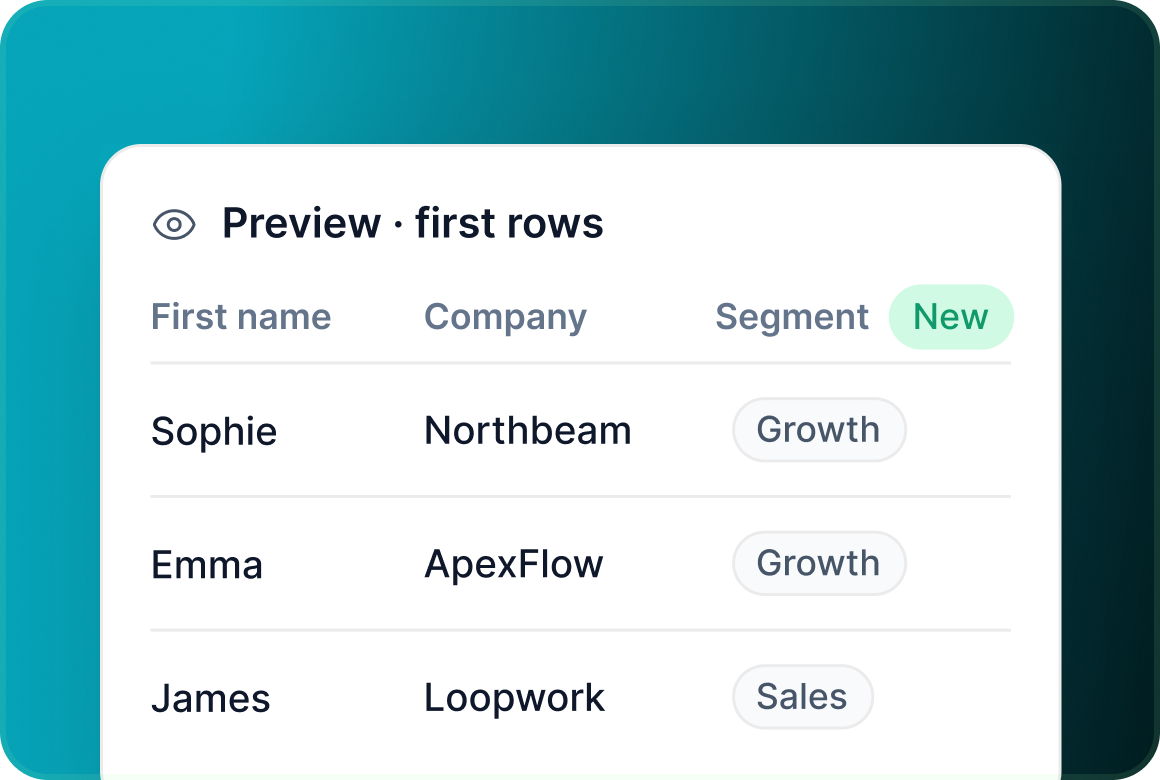
Create custom fields during import, set fallback words for variables and preview the first rows before you commit the list.
Input sources
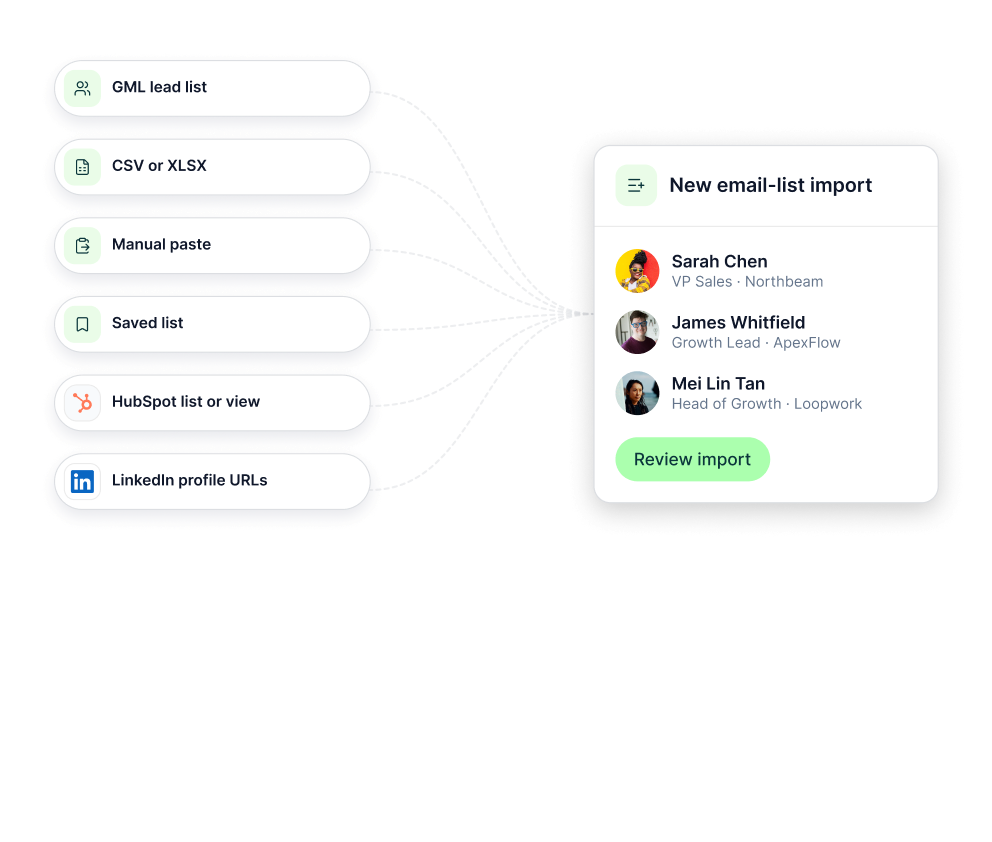
Use the list wherever you already keep it
Email-list imports can start from a GML lead list, CSV or XLSX, manual paste, a saved list, a HubSpot list or view, or LinkedIn profile URLs.
Field mapping
Keep your own structure. Map it into the fields GML needs.
The import layer is designed to preserve useful context rather than forcing every source file into the same rigid template.
- Every new LinkedIn seat follows the same gradual warm-up period.
- Change a mapping when your file uses a different column name or meaning.
- Create new fields as needed and set a fallback word for variables that may be missing.
Email-list checks
See what will be included and why something was excluded
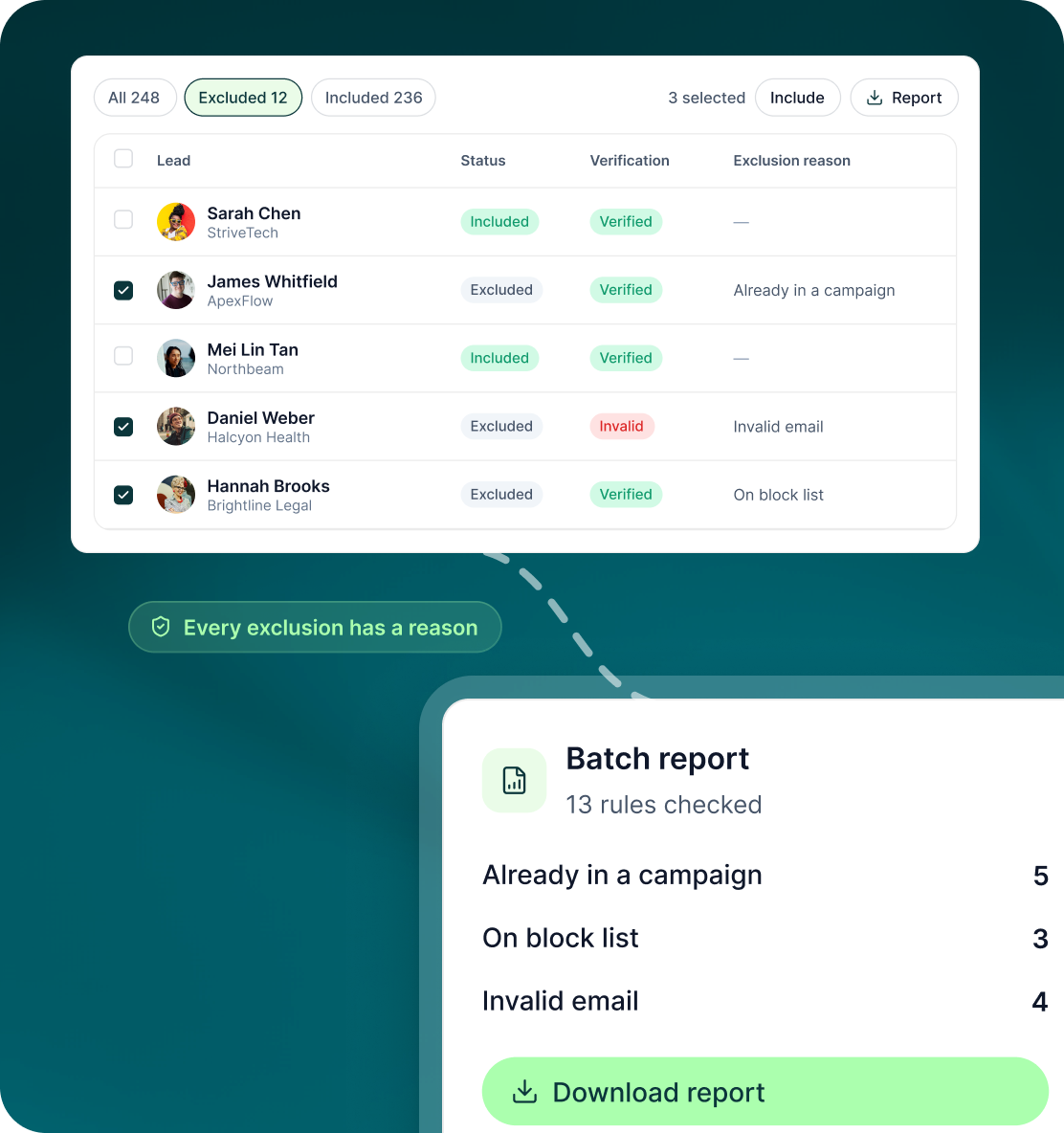
For email lists, GML runs a fixed 13-rule exclusion pipeline before outreach and keeps the reasons visible in the review stage.
- See include/exclude status, verification status, exclusion reason and mapped fields.
- Use filters and bulk actions to work through the import before campaign enrolment.
- Download a report for each batch with counts for every exclusion rule.
Case studies
Teams who can show their work
“Using Get Me Leads has been one of our smartest investments. Our team actively engages with the platform, and we’ve seen a notable boost in our sales.”




“We’ve fully transitioned our operations to Get Me Leads. The product is user-friendly and adaptable, greatly helping us increase our lead generation.”


Build the list. Check who is in it. Then launch.
Questions
Importing your own lead data
Yes. For email-list imports, CSV and XLSX files can contain up to 10,000 rows.
Yes. Manual paste is one of the supported email-list import routes.
No. Headers are auto-mapped by synonym where possible, and you can override the mapping manually.
Yes. Custom fields can be created during the import.
You can set a fallback word for each variable.
Yes. CSV and manual imports can be saved as reusable workspace lists.